
Missing Pages in Facebook Insights
Last updated
Note: Sometimes, Facebook changes app permissions and they need to be refreshed. This can cause frustration when you're trying to connect to Facebook Insights and you see missing pages. This page will help you get back on track.
This page will assist you with the following errors
Missing pages in the drop-down menu when connecting with Facebook Insights from Data Studio.
Missing page_id'Error-id: when trying to connect
Causes
There are several potential causes for these errors.
Please allow 48 hours for the page to appear after you have followed these troubleshooting steps.
A Page Was Added Recently
Your hub keeps a saved list of the pages your Facebook login can access and updates it every night, so a page you added to your Business Manager or were given access to today may not be in the list yet. You don't need to disconnect and reconnect your source to bring it in:
- Go to Sources in your Power My Analytics hub.
- Click the three-dot menu in the Actions column next to your Facebook Insights source and select Refresh accounts. Wait for the Accounts refreshed message.
- Open the same menu, select Add or remove accounts, check the page, and click Save.
Then go back to Data Studio to see if the page is now available.
Incompatible Browser
Sometimes Mac or Safari browsers will not work. Try again with Chrome.
Insufficient User Permissions
You will need different types of access depending on how you manage your page.
- Facebook's classic page management tools require Administrator access.
- If you use Business Manager to manage your page, you will need Page Editor access.
- If you use New Page Experience to manage your page, you will need at least partial access.
Insufficient App Permissions
Our app may have insufficient permissions from Facebook.
Check your connected apps in Facebook to make sure our App still has permission to access Insights for all of your pages.
If the above link does not work, click the drop down menu next to your image at the top right corner of your Facebook Homepage. Click Settings & Privacy.
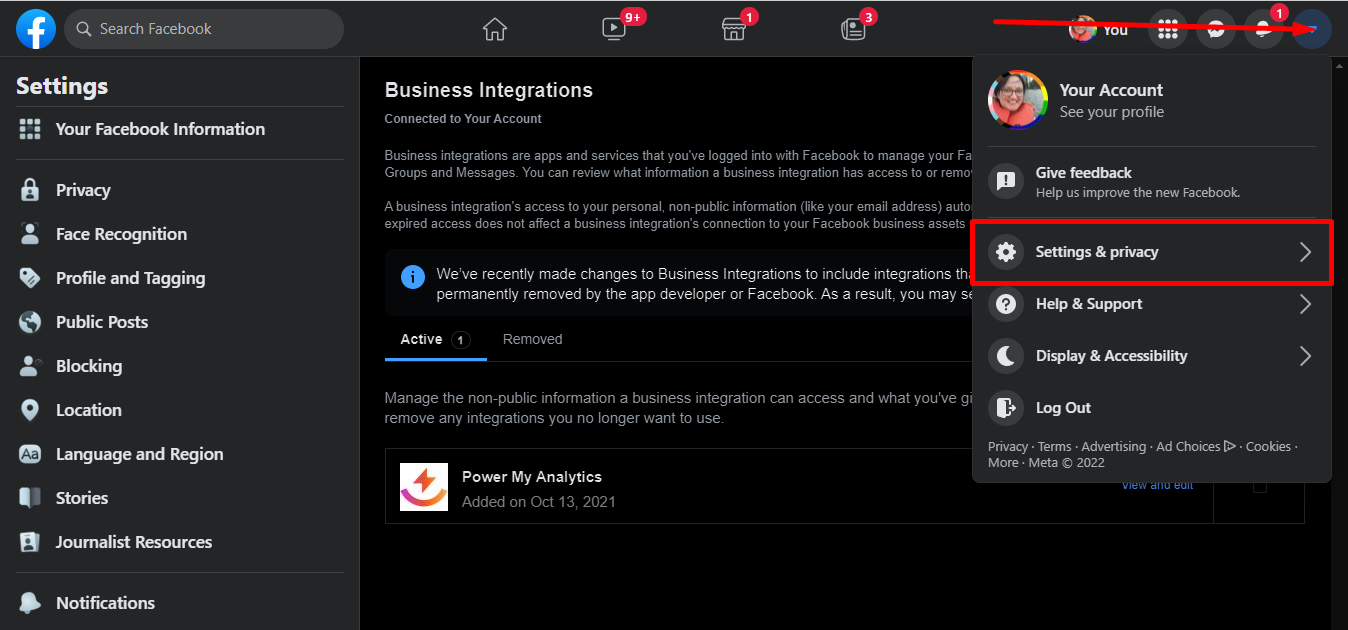
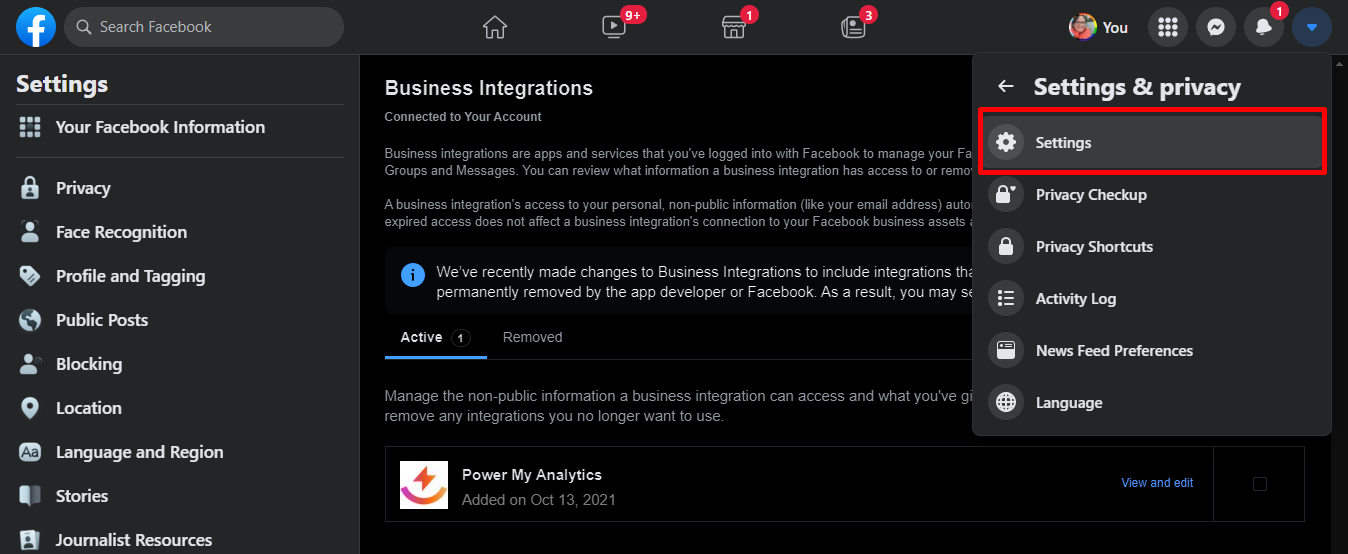
Click Settings.
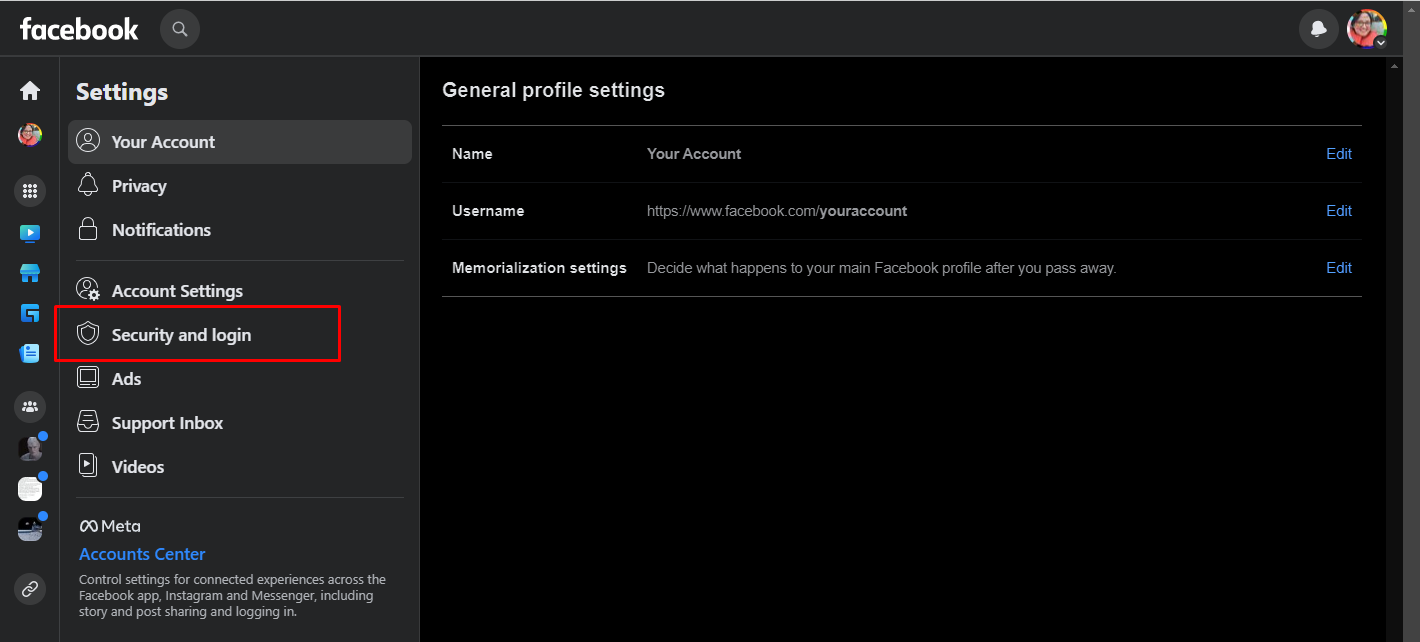
Select Security and login.
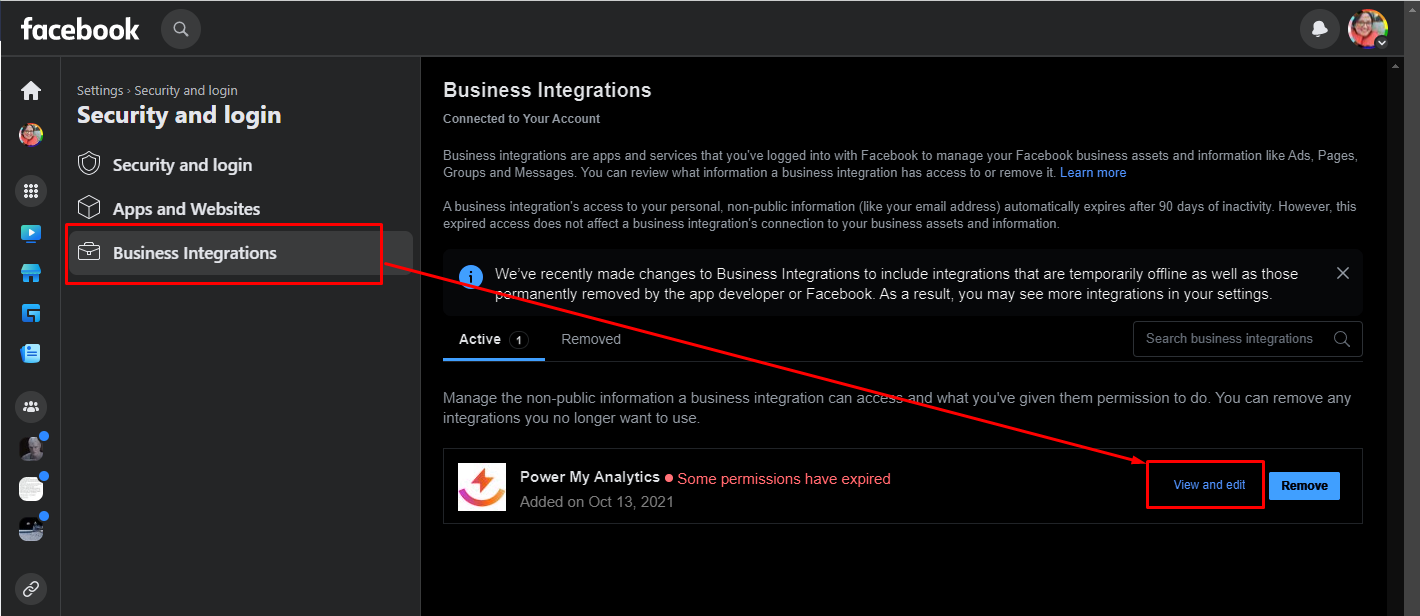
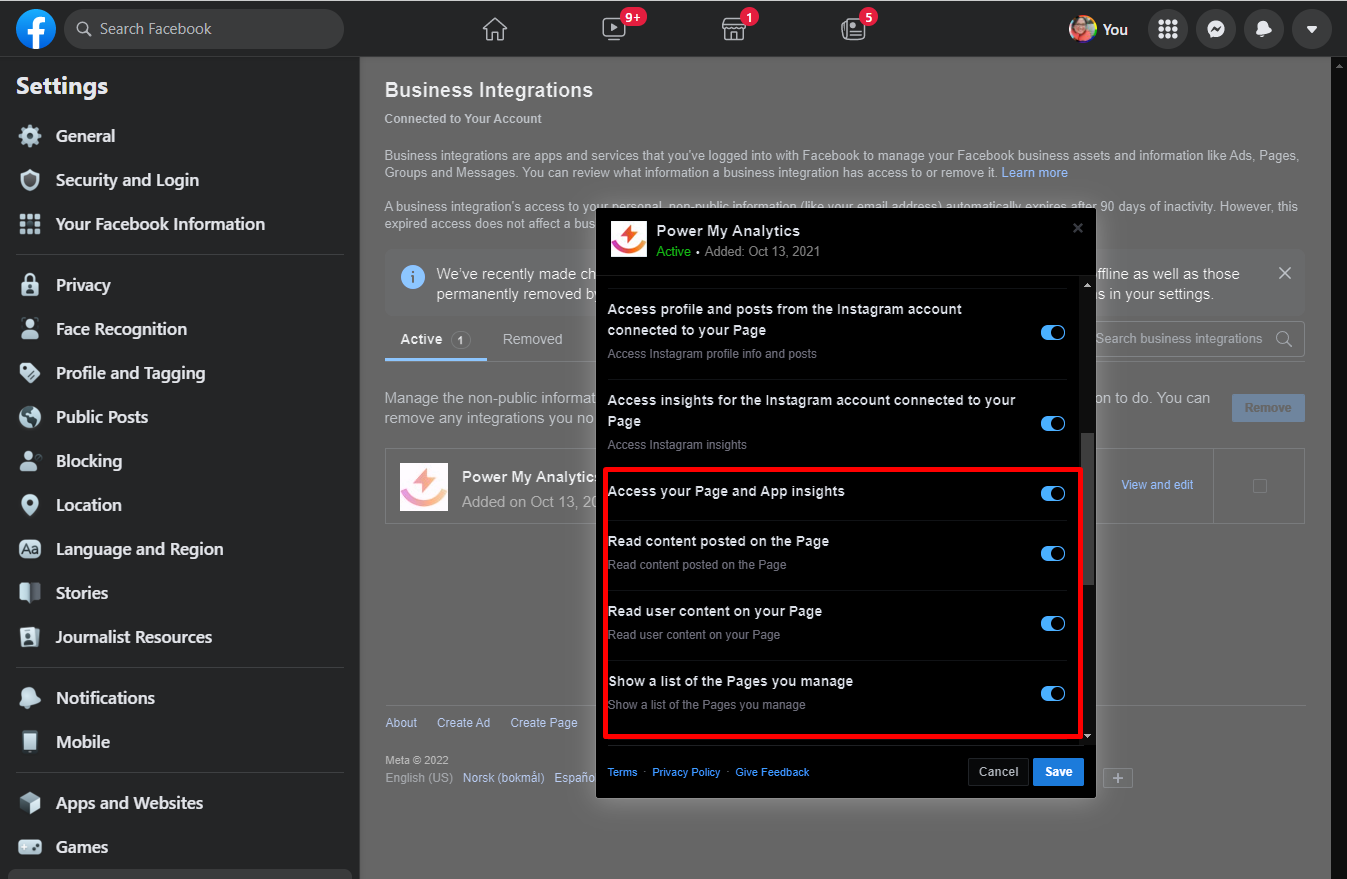
Select Business Integrations from the left navigation pane. Find Power My Analytics then click View and Edit.
Make sure all permissions are approved. It is especially important to approve:
- Access your Page and App insights
- Read content posted on the Page
- Read user content on your Page
- Show a list of the Pages you manage
If you are given the option to select which pages we can manage, select those pages.
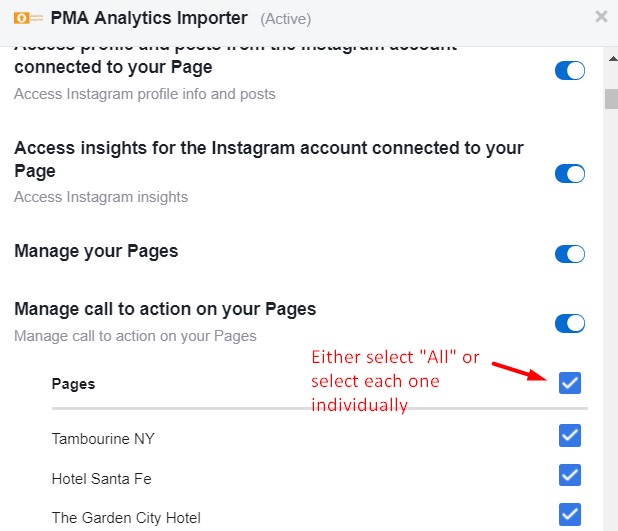
Then go back to Data Studio to see if the pages are now available.
Revoking and Reconnecting the Power My Analytics App
If the steps above don't bring the page back, reset the app's access as a last resort. Go to your Facebook account business integrations and remove our app.
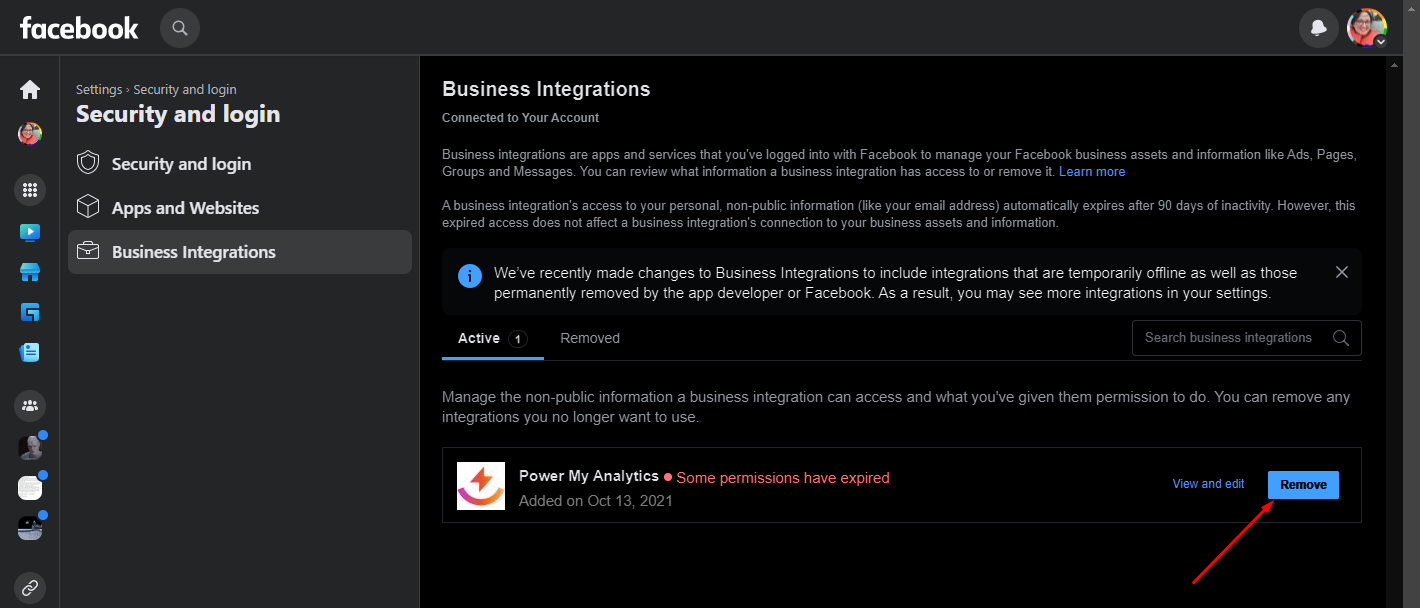
Then, in your hub, click the three-dot menu in the Actions column next to your Facebook Insights source, select Reconnect source, and sign in again. When Facebook asks, select Opt in to all current and future Pages. Reconnecting doesn't impact any existing reports. For more on reconnecting, see Disconnect and Reconnect a Source from Your Hub.
More than 100 Facebook Pages
Facebook cannot return a complete list of pages if there are more than 100.
If you manage more than 100 pages, please submit a ticket and specify the number of pages you manage.