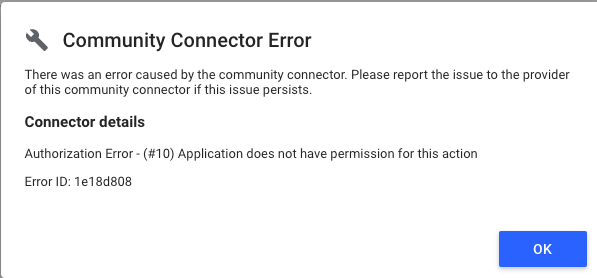
Community Connector Error: Authorization Error - (#10) Application Does Not Have Permission for This Action
Last updated
The "(#10) Application does not have permission for this action" error means Facebook hasn't given Power My Analytics permission to read data for the Instagram Insights account your report uses.
Note: If your Facebook or Instagram account is connected in your hub but you can't select an ad account, Page, or Instagram account, and you don't see this error, follow Why Can't I See All of My Accounts in My Hub? instead.
This article will address the following error:
Authorization Error - (#10) Application does not have permission for this action.
Cause
The Instagram Insights account in use does not have the appropriate permissions to connect via Power My Analytics.
Solution
Check Permissions
For a successful connection, an Instagram Business or Creator account is required. The account must use Facebook authentication and not have age or other restrictions applied. The account must be linked to an active Facebook Page.
Reconnect Your Account
After verifying permissions, reconnect the Instagram account via your Hub.
Reset Business Integration Settings in Facebook
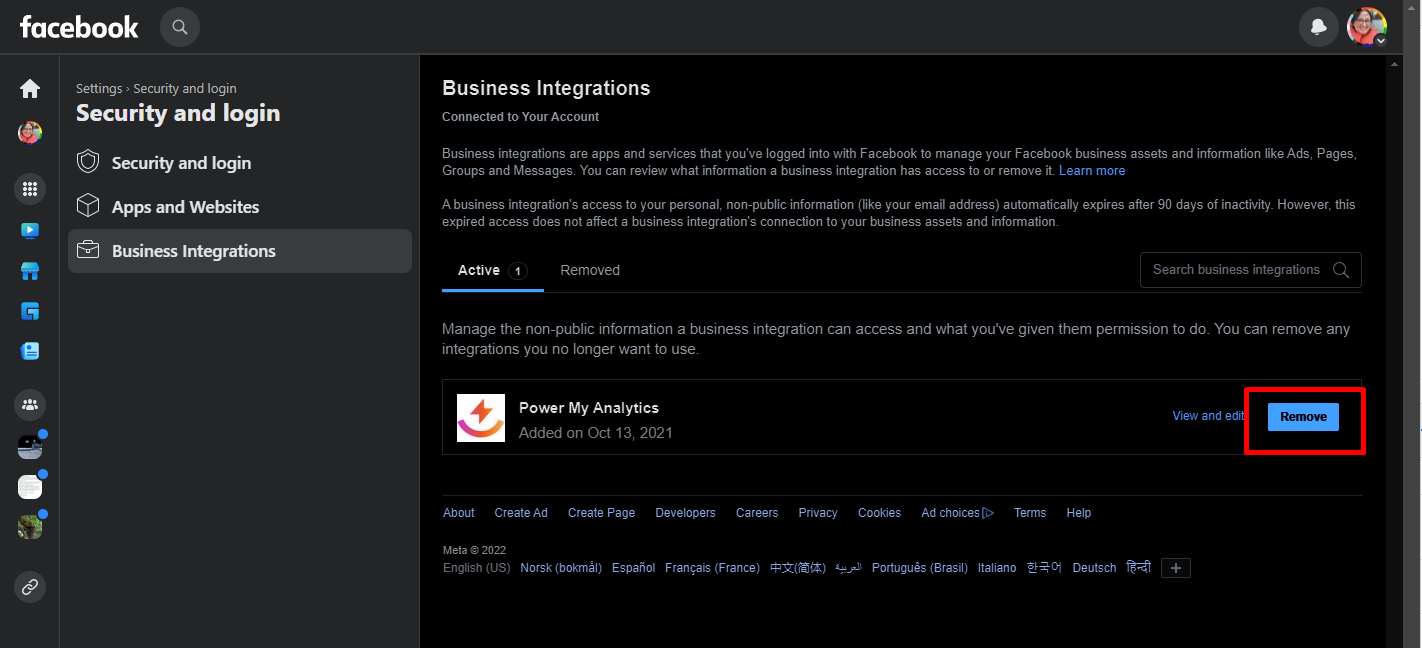
Log in to the Facebook account associated with the Instagram account that is receiving the error. Go to your Business Integrations page. Find Power My Analytics and click Remove.
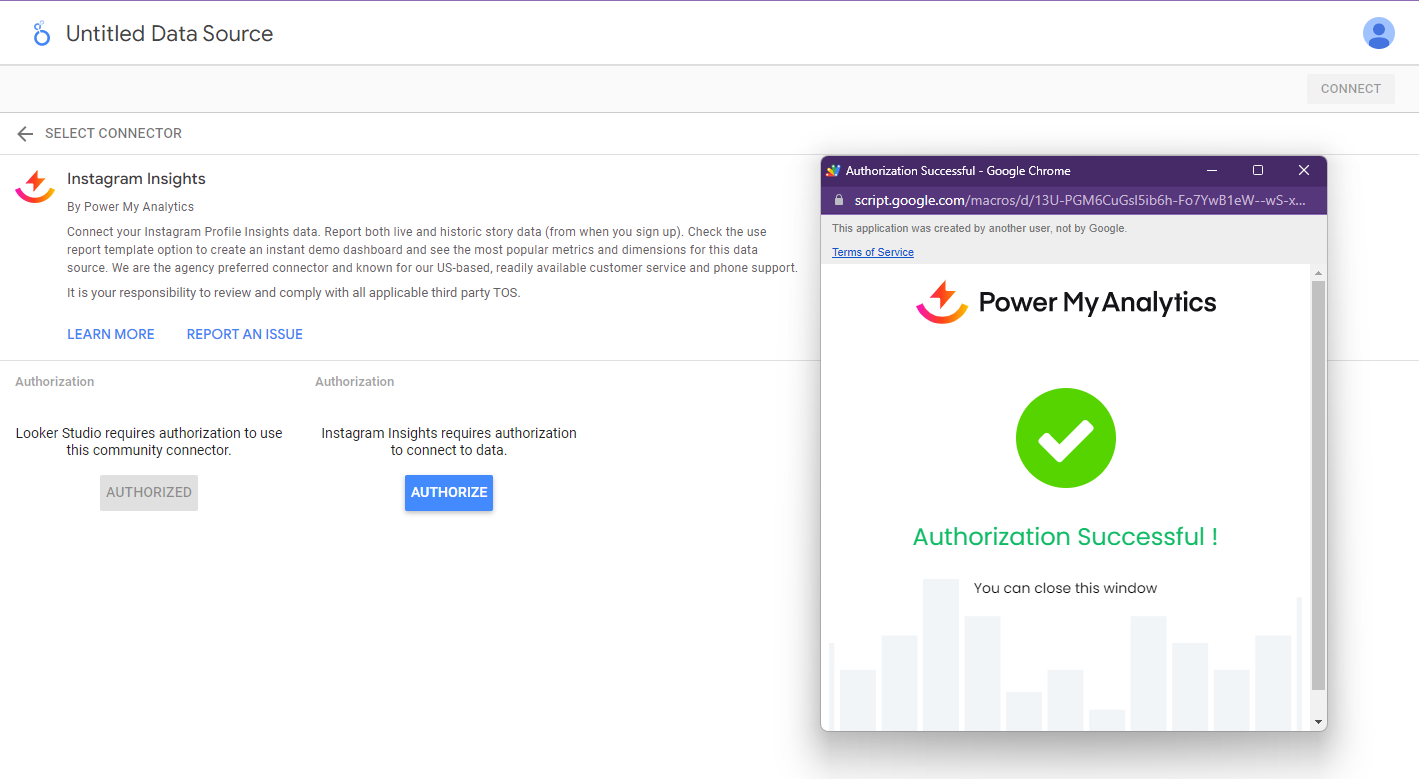
Reconnect your Instagram account with Power My Analytics in your destination or Hub.
Check Whether Your Page is Active
A Facebook page that has been unpublished or deactivated for any reason will need to be reactivated to create a successful connection. If the page does not appear in the Pages menu, it may have been unpublished.
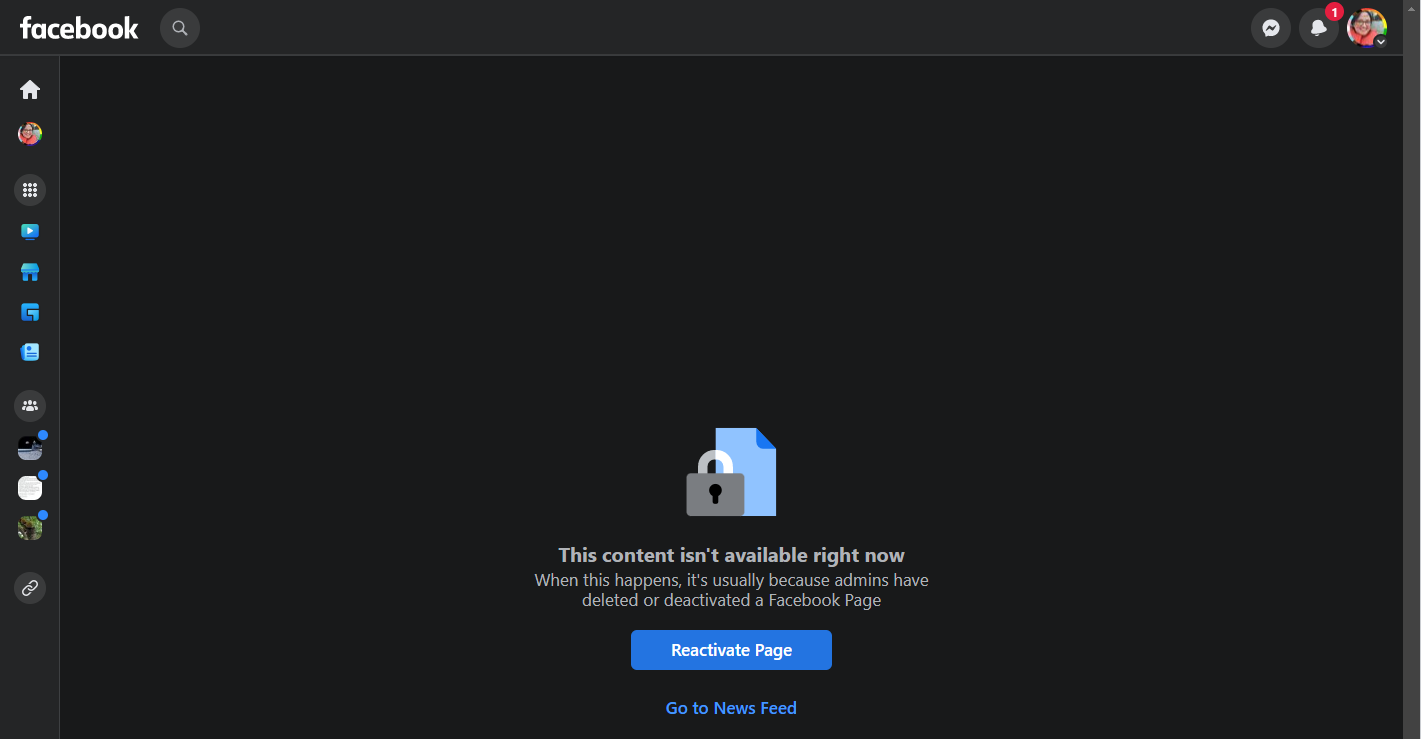
Reconnect Facebook and Instagram
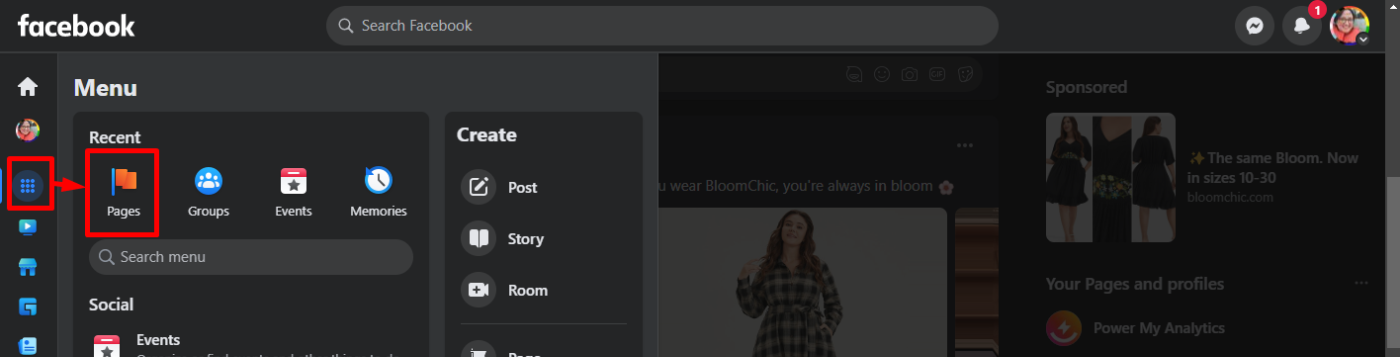
While logged in to the Facebook account attached to the Instagram account, click Pages in the left menu.
Select your page. Click on your profile picture and select Settings and Privacy from the menu that appears.
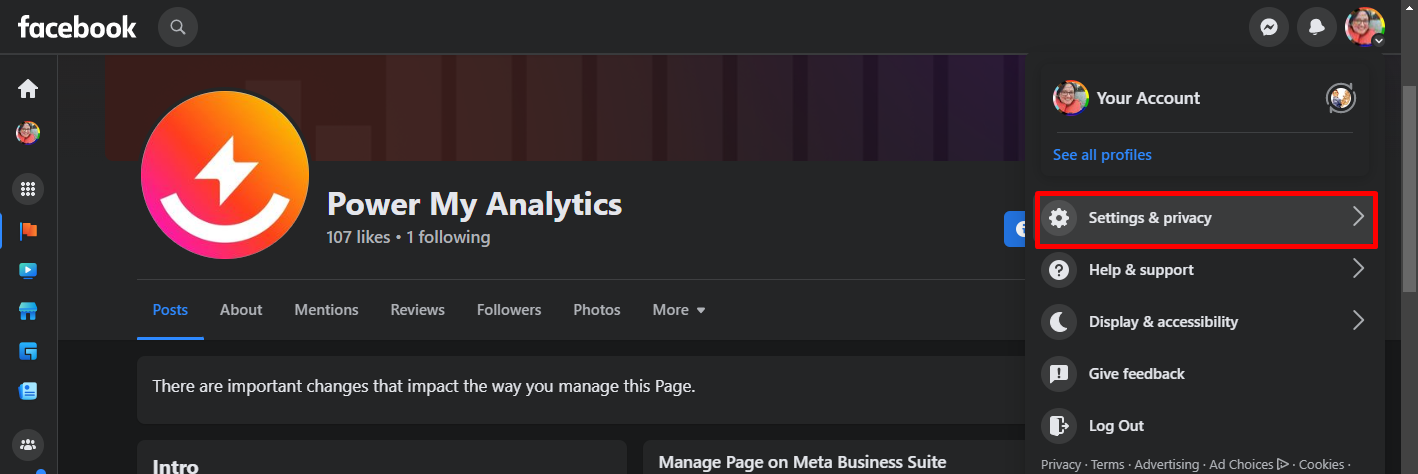
Click Settings.

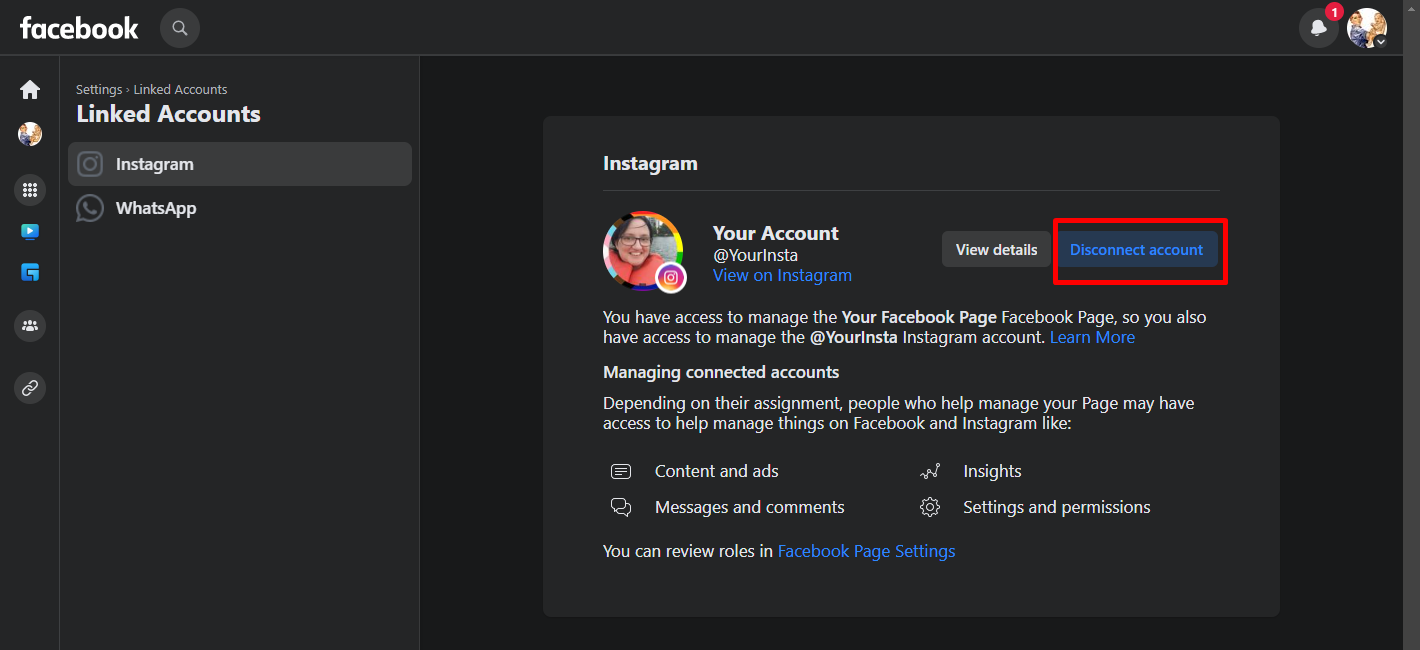
Select Linked Accounts.
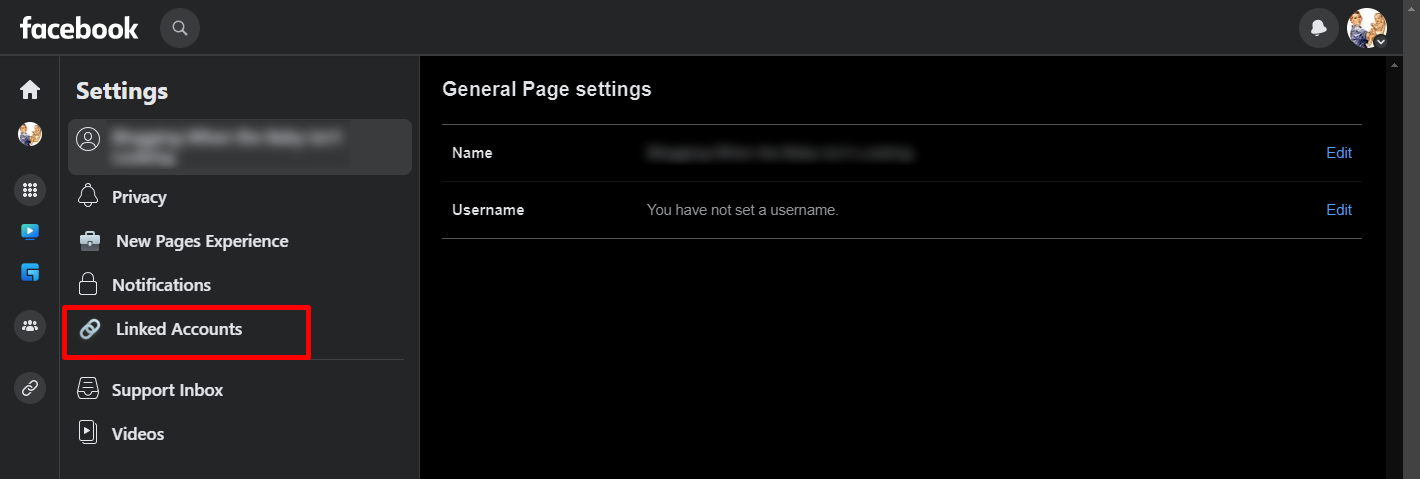
Click Disconnect Account.
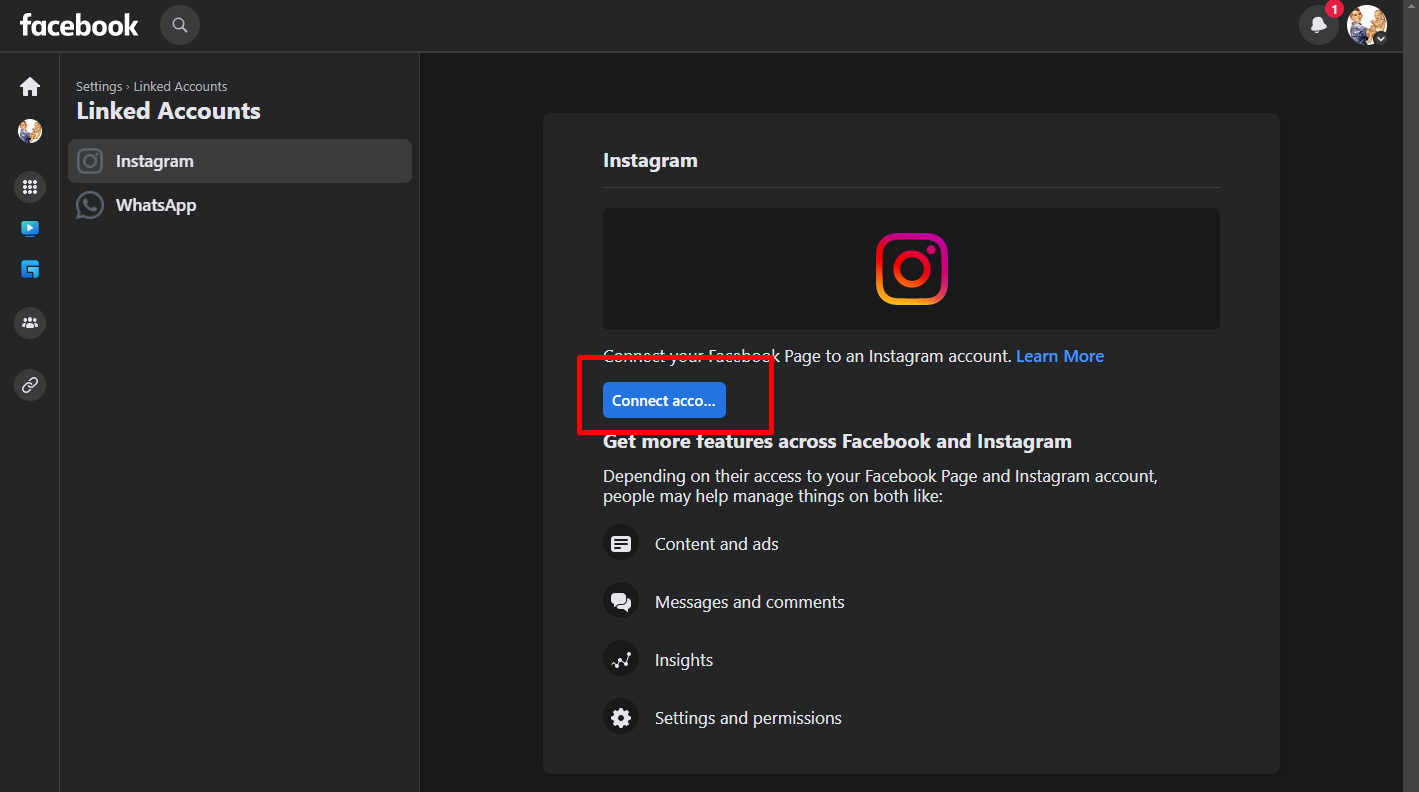
When you are ready, connect the account again.
Enable Two-Factor Authentication
If the Facebook Page to which the Instagram account is linked has two-factor authentication, then your Facebook profile must also have two-factor authentication for a successful connection.
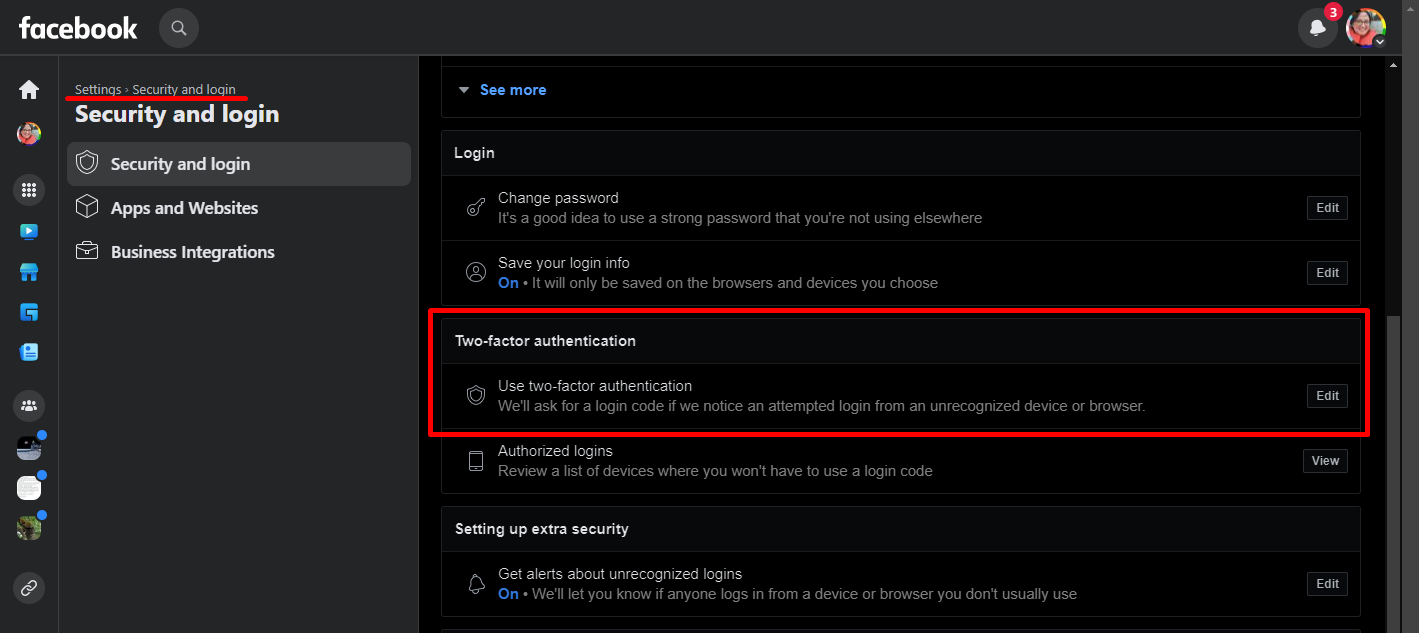
You can enable two-factor authentication in the Security and Login section of your account settings.