Reconnect a Source in Data Studio
Last updated
Reconnecting a data source in Data Studio repairs its connection to your Power My Analytics hub, for example after an authorization error or when the data source should use a different hub or account. This article shows you how.
Note: Reconnecting doesn't fix every Data Studio error. If your report times out or shows "Request failed", see Data Studio Report Times Out or Shows "Request failed". If columns are blank but the data is in your hub, refresh the field list instead: see Data Studio Shows Null or Blank Values, but the Data Is in Power My Analytics.
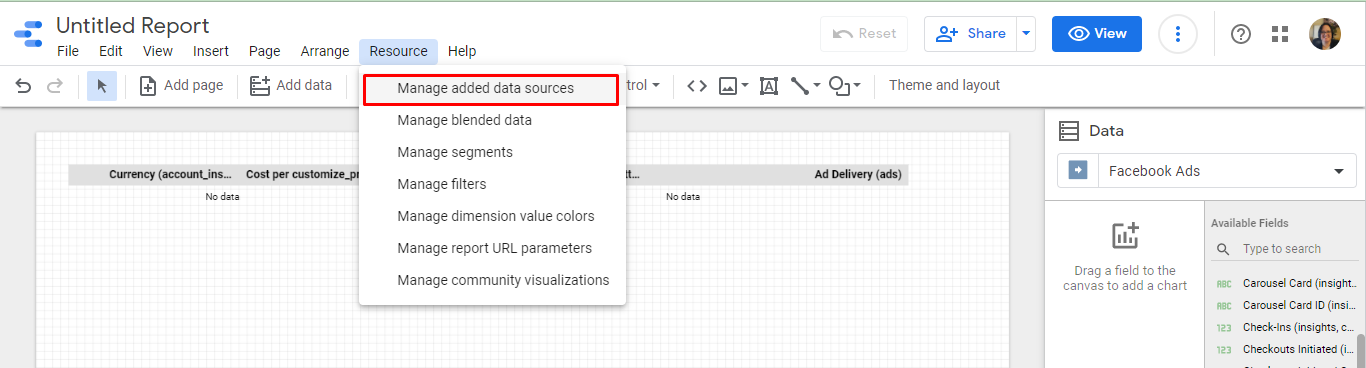
1. In Edit mode, click Resource and select Manage Added Data Sources.
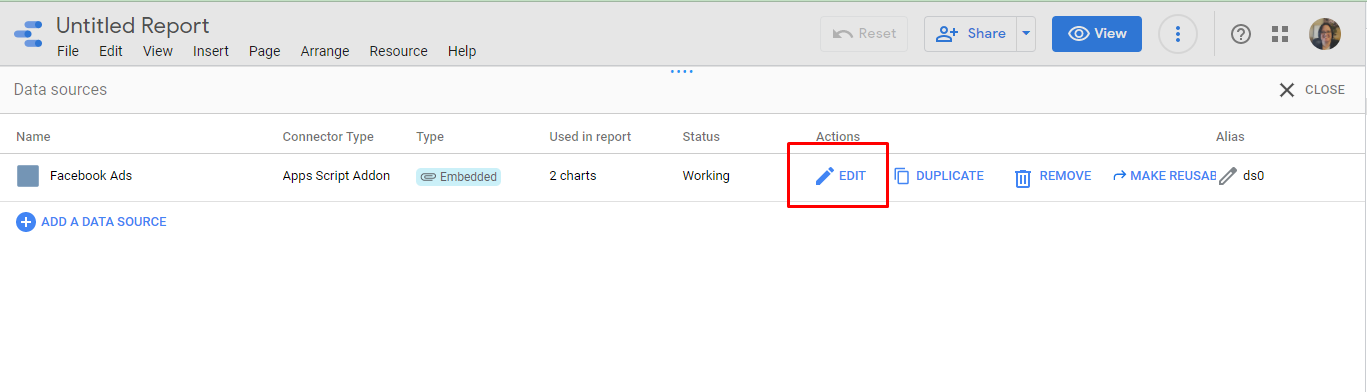
2. Find the data source that is receiving the error and click Edit.
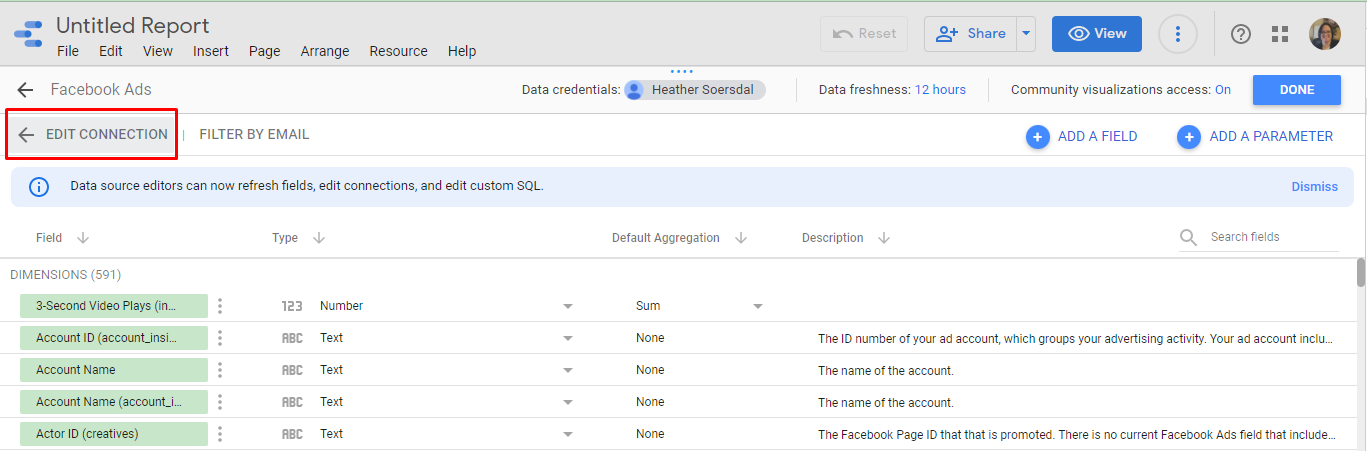
3. Click Edit Connection on the top left.
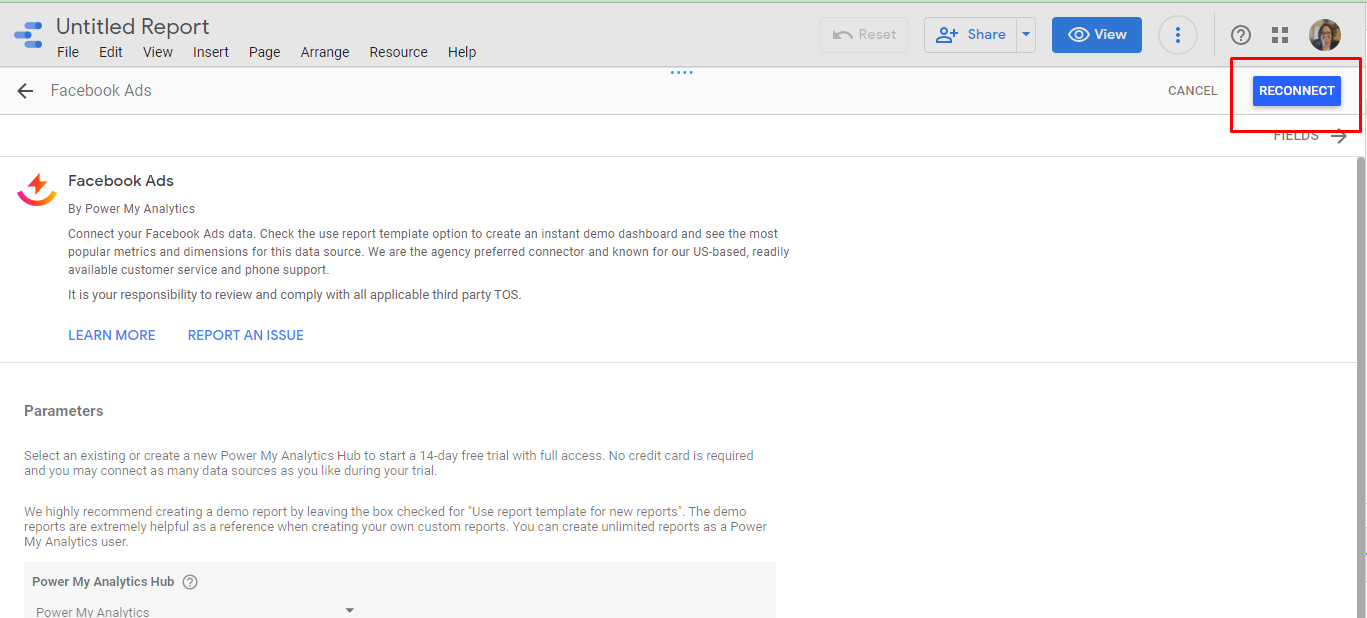
4. Click Reconnect on the top right.
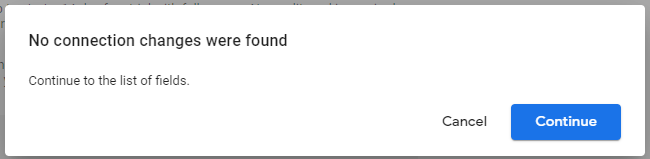
5. Approve connection changes by clicking Continue. If Data Studio lists field changes, review them and click Apply.