
Error: Missing Google Ads Scopes
Last updated
Note: When creating a report using your Google Ads account in Power My Analytics, you may encounter an error message stating "Missing Google Ads Scopes." This guide will help you understand the cause of this error and provide step-by-step instructions to resolve it.
Error
"Missing Google Ads Scopes"
- Data source affected: Google Ads
- Occurs: When attempting to create a report using a Google Ads account as a data source
Cause
This error occurs due to insufficient Google Ads permissions granted to Power My Analytics when connecting to your Google account. To resolve this issue, you'll need to disconnect and reconnect your Google account with the correct permissions.
Solution
Disconnect your Google account:
Note: Disconnecting and reconnecting a source will not impact any existing reports in Power My Analytics.
Navigate to your Power My Analytics hub
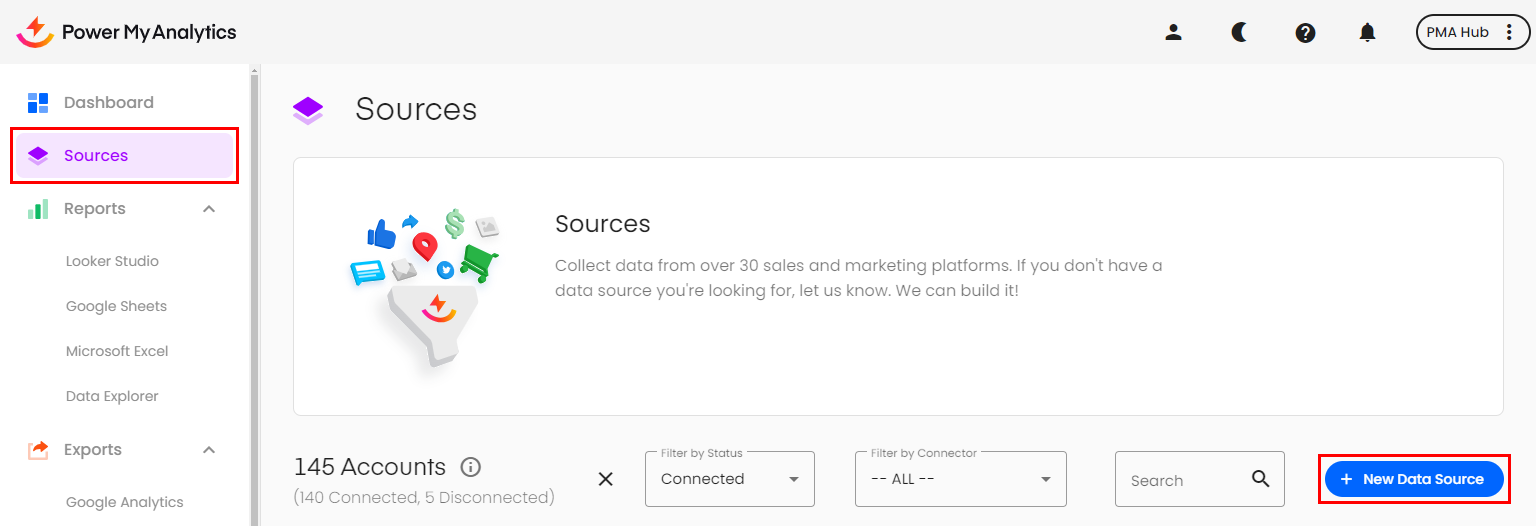
Click on Sources in the left navigation panel
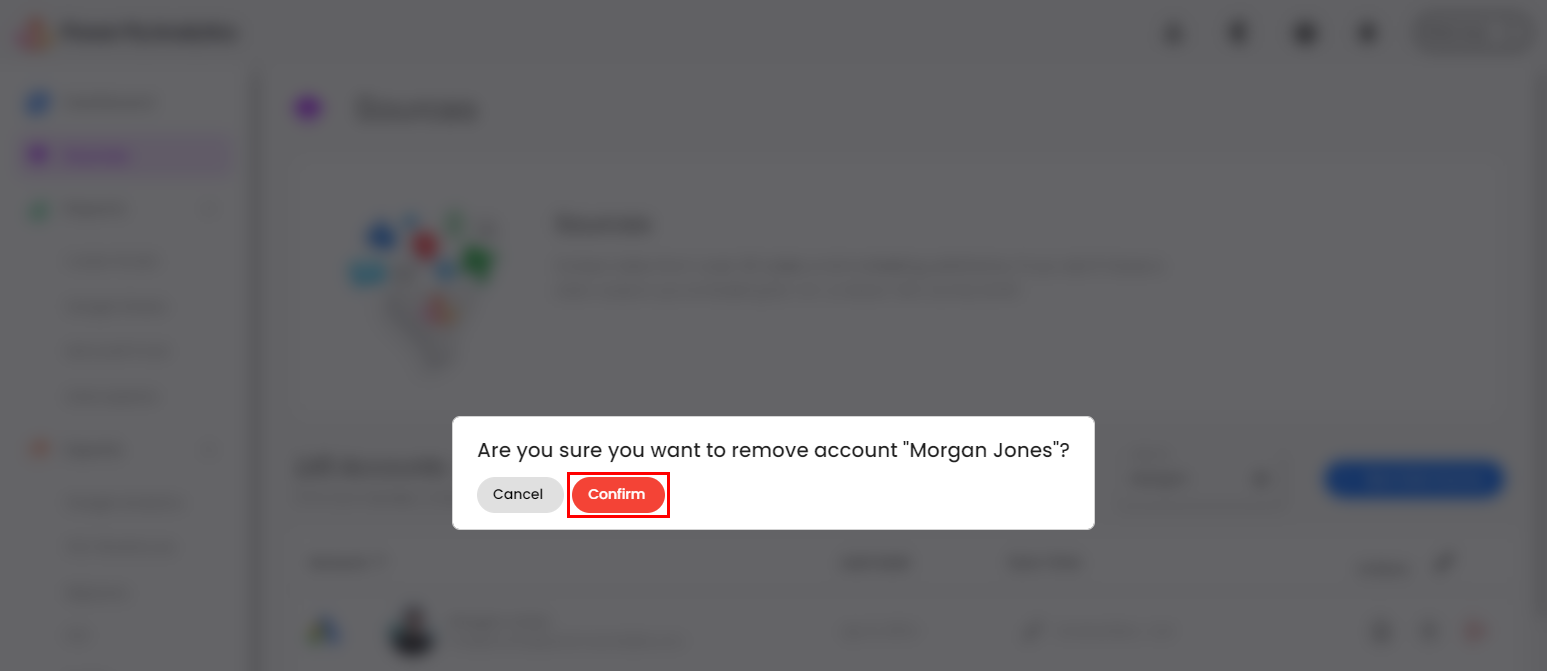
Locate the Google account you wish to remove and click the red icon next to it

Confirm the disconnection when prompted
Reconnect to Google with the correct permissions:
In your Power My Analytics hub, click on Sources in the left navigation panel
Click on + New Data Source
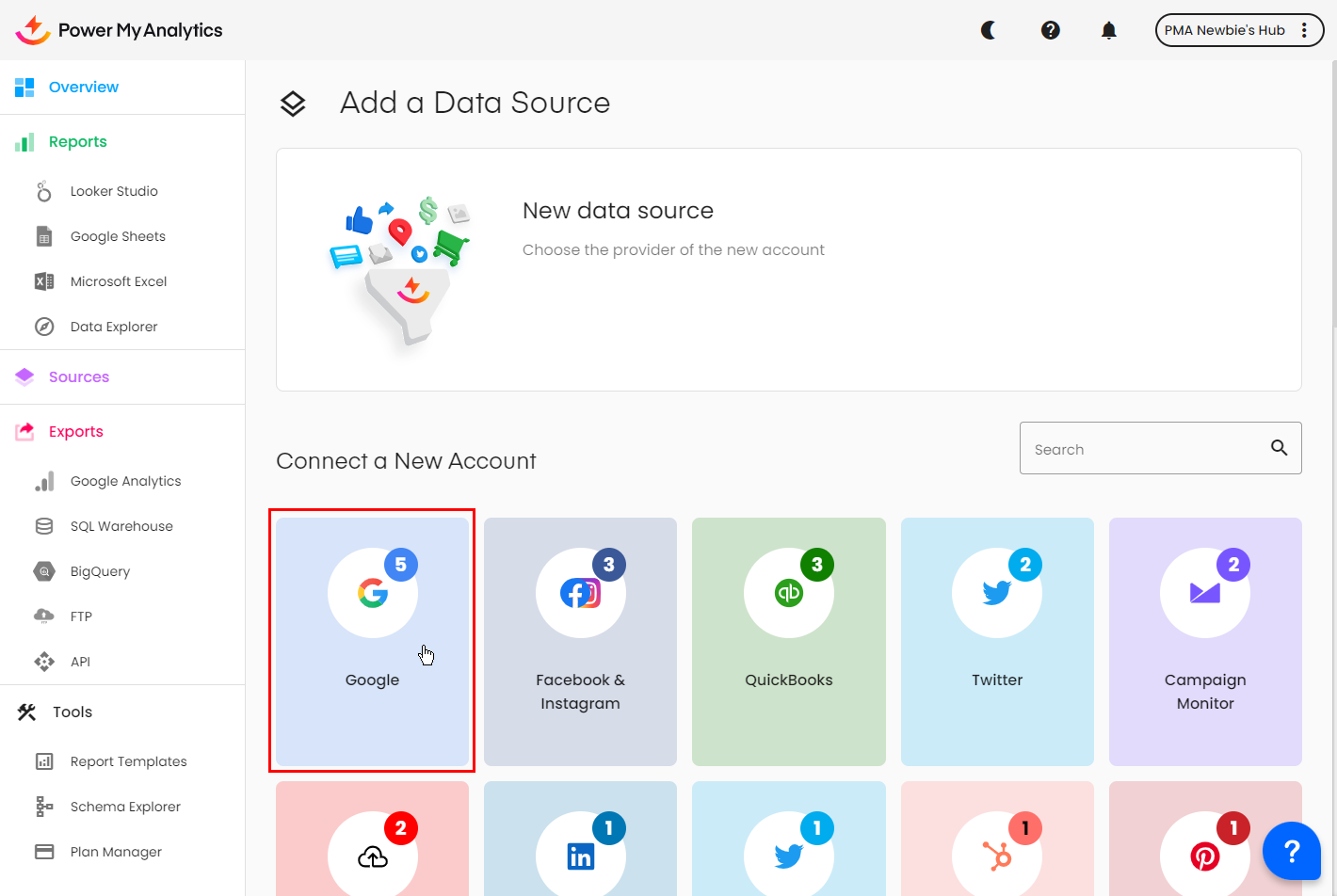
Select Google from the available options
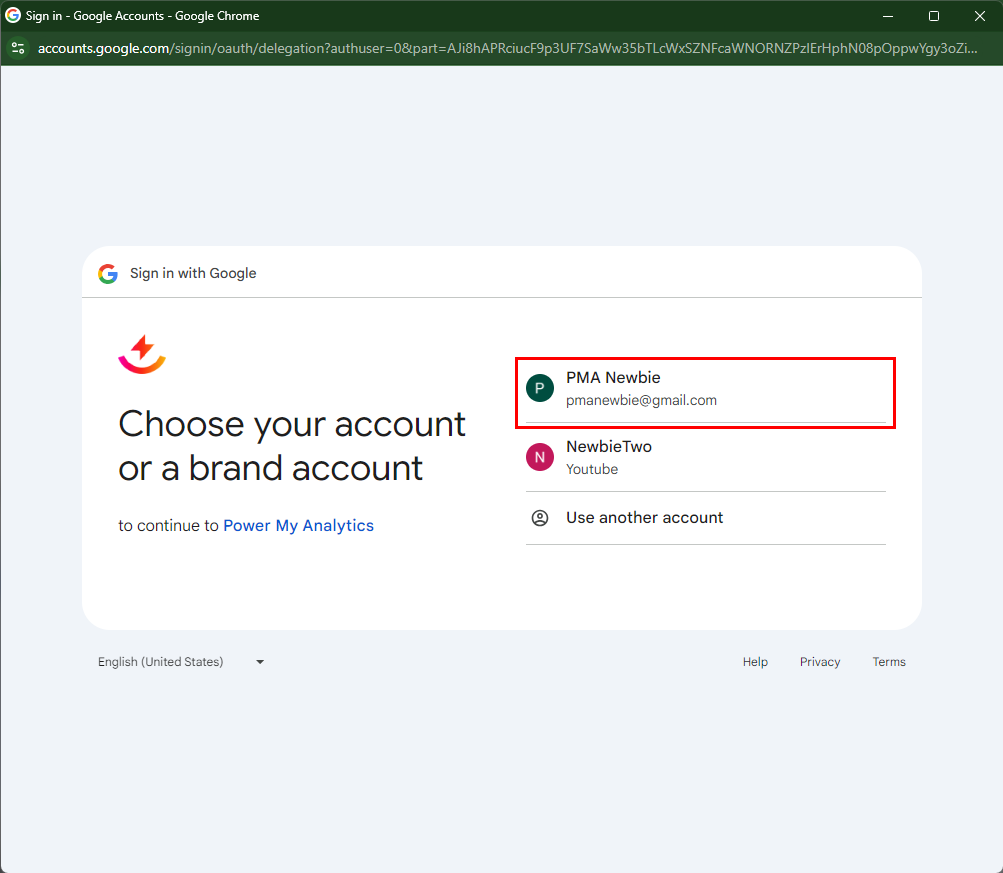
When the popup appears, choose your Google account
Enable the following permissions:
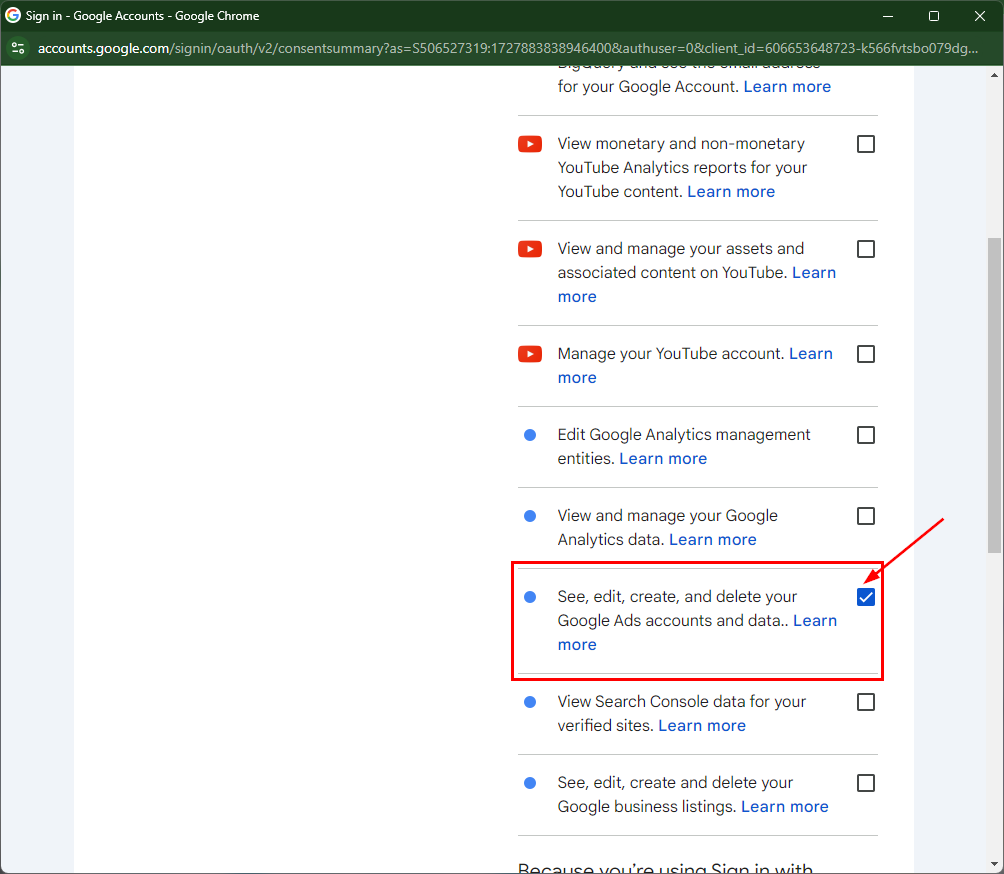
- See, edit, create, and delete your Google Ads accounts and data
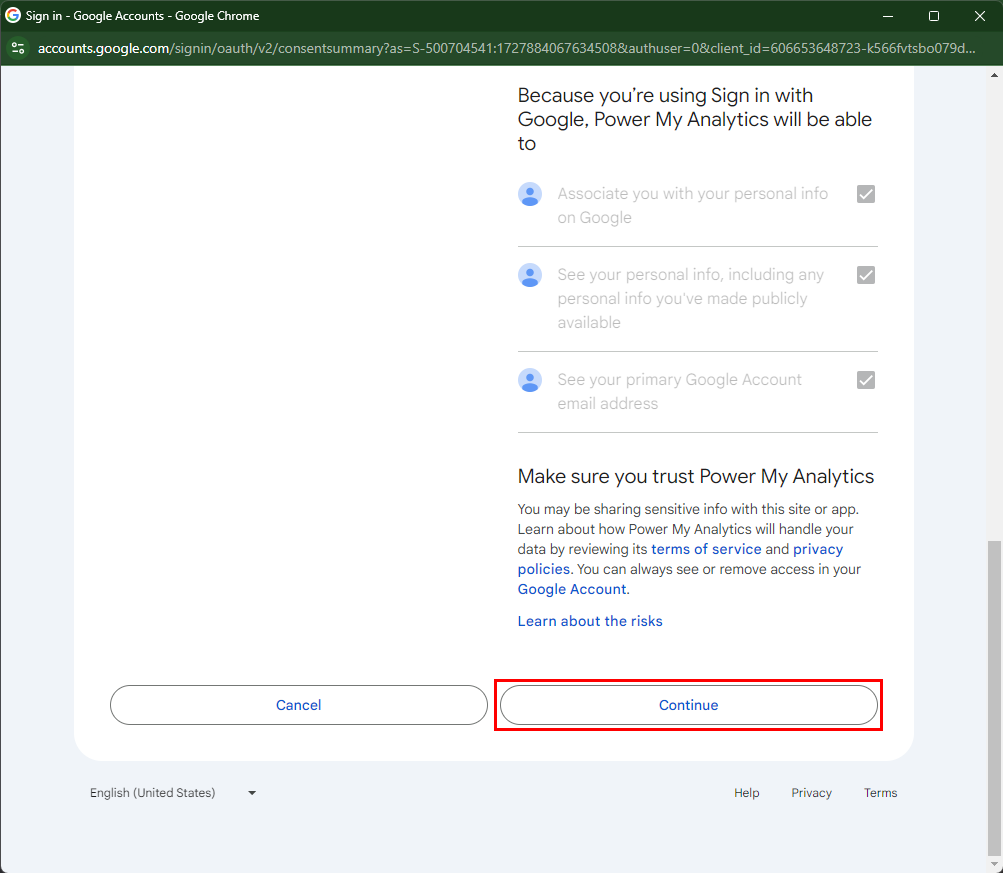
Click Continue to proceed
Verify the connection:
- After authorizing with the correct permissions, attempt to load your report again. The error should now be resolved.
Note: Power My Analytics' connector will never edit, create, or delete anything in your Google Ads account. Google does not provide a read-only option for permissions.