How to Use the SQL Connector
Last updated
Note: Power My Analytics now offers an SQL connector in addition to our Hosted SQL solution. This article will help you get started with using our SQL connector and set up a MSSQL or MySQL query.
Connect to your server in the Hub
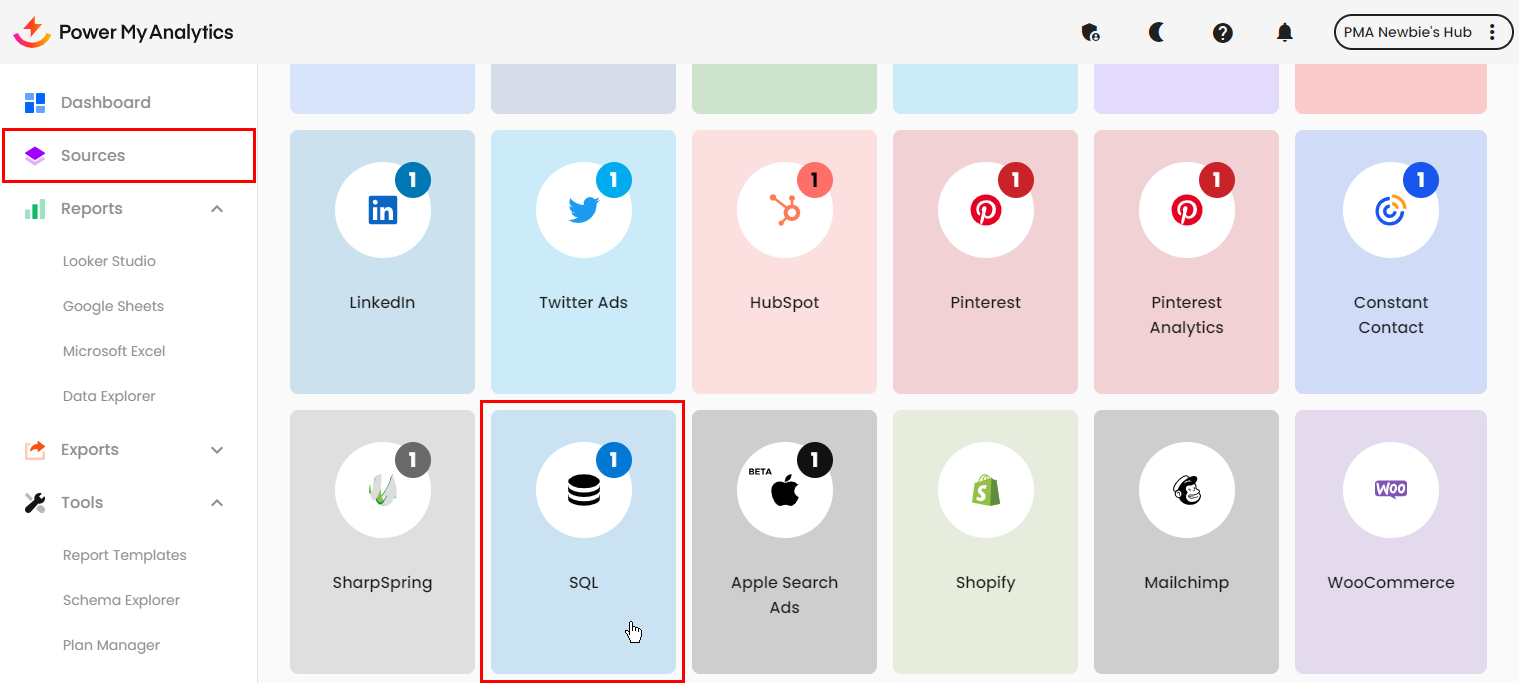
Select Sources in the left navigation pane, then click + Add new source. Click on SQL in the gallery.
Choose MySQL or MSSQL, then enter your Host, Port, Username, Password, and a Name for this server.
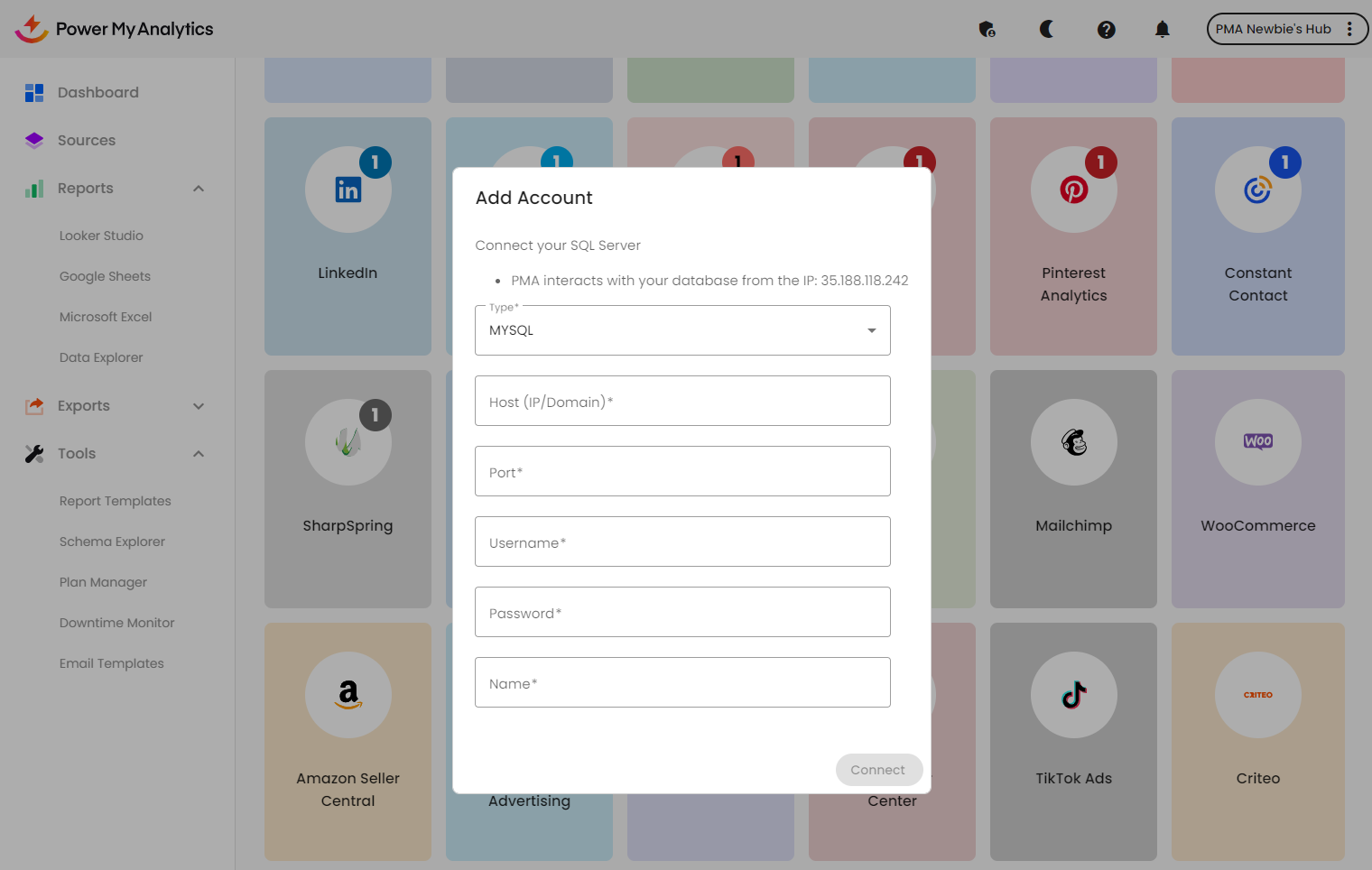
Note: Make sure your SQL server is configured to allow connections from PMA's IP address, 35.188.118.242.
Create a query
The connector configuration screen for SQL requires you to enter a query manually.
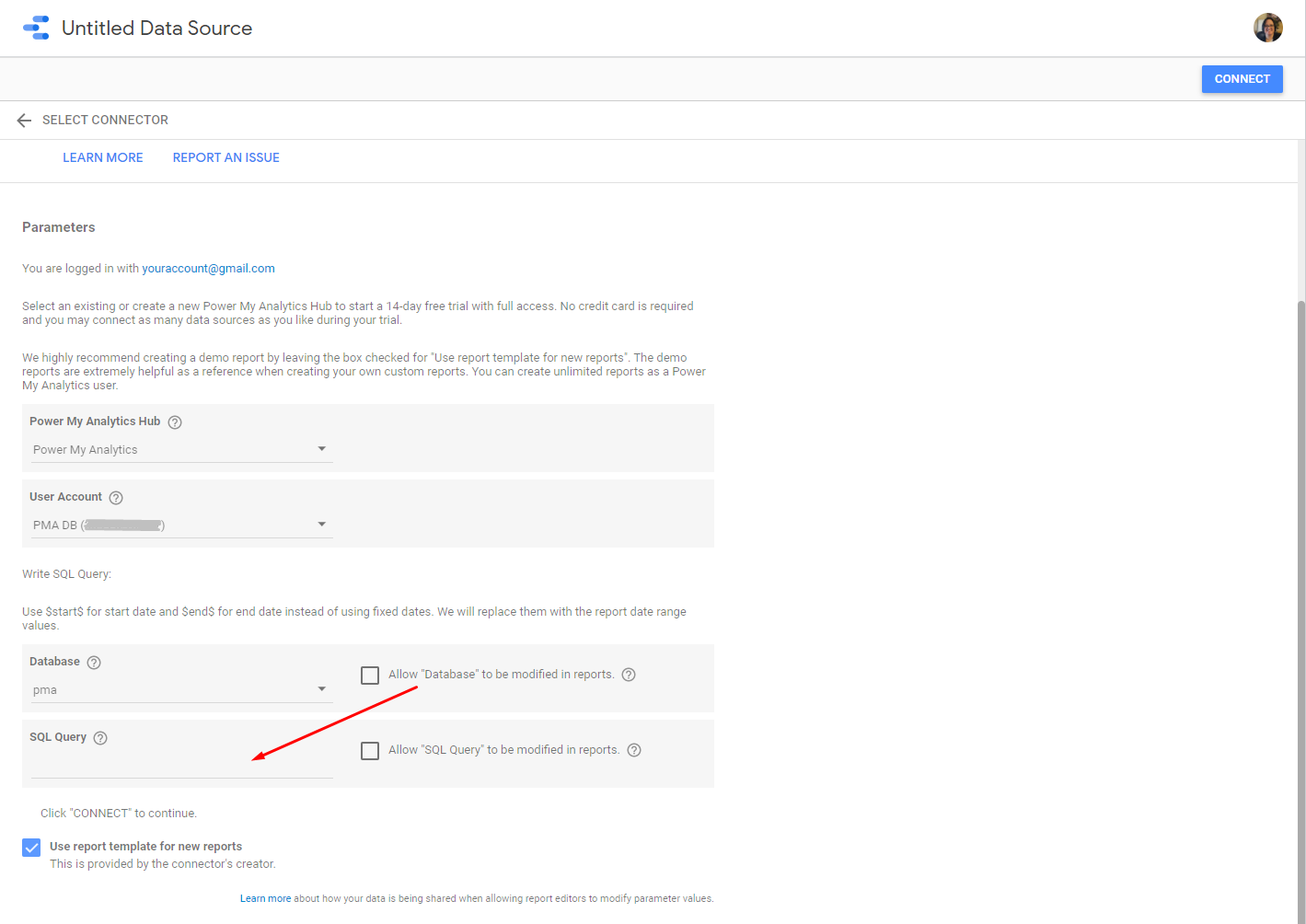
Format your query according to your database's rules.
A successful query may look like this:
SELECT * FROM table WHERE DATE BETWEEN $start$ AND $end$ limit 100
- Use * if you want to retrieve all data from your table. Otherwise, enter the specific terms you wish to select for and make sure the spelling is exactly the same.
- Enter the name of the table here and make sure the spelling is exactly the same. Use underline characters (_) instead of spaces.
- Date should be formatted according to your database's rules or you can use $start$ to specify your start date within the report.
- Date should be formatted according to your database's rules or you can use $end$ to specify your end date within the report.
- Set a limit on the number of rows you wish to retrieve. Larger limits will take longer to retrieve. Data Studio has a limit of 1,000,000. If you do not set a limit and you retrieve more than 1,000,000, you will receive an error.
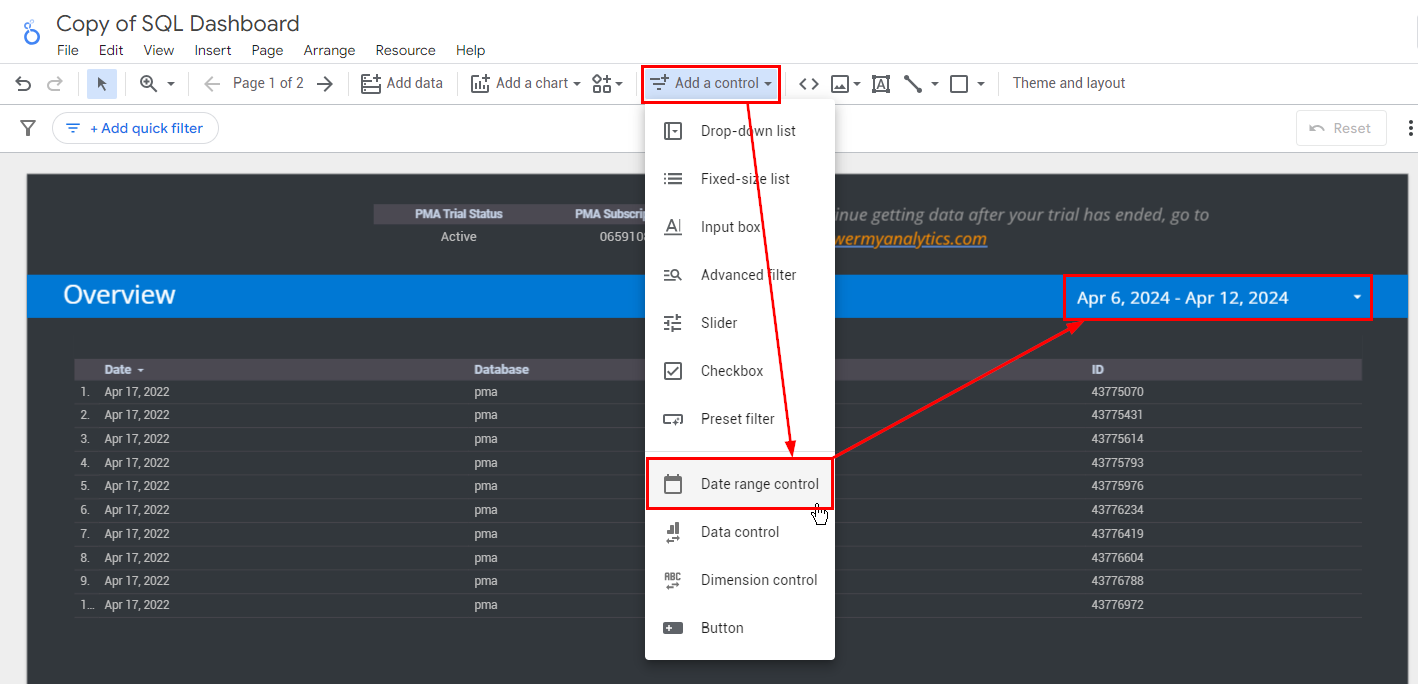
Click Connect to create your report. If you entered $start$ and $end$ instead of dates, you may specify your range by adding a date range control in Data Studio.