
CartStack Data Connector User Guide
Last updated
Note: Are you looking to streamline your e-commerce analytics and improve your cart abandonment recovery efforts? This guide will walk you through setting up and using the CartStack data source in Power My Analytics. By integrating CartStack with our platform, you'll be able to automate your data collection, centralize your metrics, and create powerful reports to drive your e-commerce success.
Prerequisites
Before you begin, make sure you have:
- An active CartStack account
- Your CartStack Site ID and API key
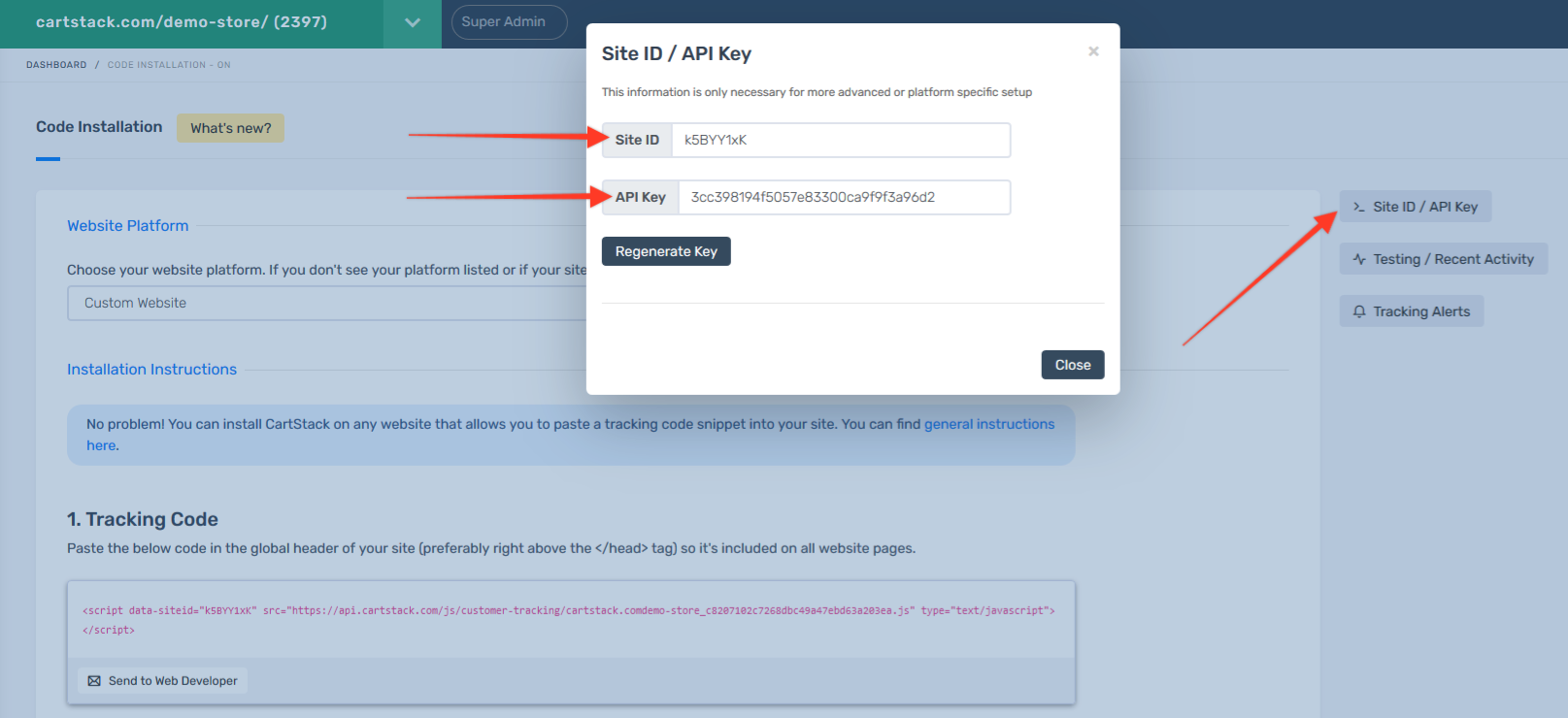
Your Site ID and API key can be found under Settings > Site ID/API Key in CartStack's UI:
Adding CartStack as a Data Source
- Log in to your Power My Analytics hub.
- Navigate to Sources from the main menu.
- Click on + Add new source.
- Select CartStack from the gallery of available sources.
- Enter your CartStack Site ID and API key.
- Click Connect to authenticate.
For more information on connecting your CartStack account, please see the article How to Connect to CartStack.
Creating a Data Studio Report
Follow these steps to create a Data Studio report using your CartStack data:
In the Power My Analytics hub, go to Reports > Data Studio
Select CartStack under Create Data Studio Report (this will open the official Data Studio application in a new window)
Google Data Studio Configuration:
Step 1:
- Name your data source (e.g., "CartStack - Your Company Name")
- Choose your Power My Analytics hub from the dropdown
- Optional: Leave "Use report template for new reports" checked to use the pre-built PMA demo template
- Click Next
Step 2:
- User Account: Select your CartStack account (for real data) or "Sample Account" (for sample data)
- Click Next
Step 3:
- Click Connect in the top right to finalize the data source configuration
Step 4:
- Click Create Report in the top right
For a quick start, you can use our pre-built CartStack demo template.
Key Reports and Fields
CartStack offers a wealth of data to analyze your e-commerce performance. Here are some key metrics you can report on:
- Key Performance Metrics: Open Rate, Click Rate, Conversion Rate, Recovered Carts, Unsubscribes, Recovered Revenue, Abandoned Carts, Emails Sent, Opens
- Recoveries Metrics: Revenue
For a complete list of available CartStack fields in Power My Analytics, visit our Schema Explorer.
Limitations and Important Considerations
- Cached Data Requests with Unique Metrics and Date Dimension: When a unique metric is paired with the date dimension, this will result in a request for cached data instead of a request for live data. For this reason, only cached data will appear in a report or chart that pairs a unique field with the date dimension.
- Backfilling: An initial backfill of 24 months of data will be performed when you first connect your CartStack account as a data source.
Unavailable Data
- Realtime data
- Custom fields
Troubleshooting
See our article Basic Troubleshooting for information on issues that may affect the CartStack connector.