
Google Sheets Error: "Exception: You do not have permission to access the requested document."
Last updated
Note: When working with Power My Analytics in Google Sheets, you may encounter an error message stating that you don't have permission to access a document. This guide will help you understand the cause of this error and provide steps to resolve it quickly.
Error
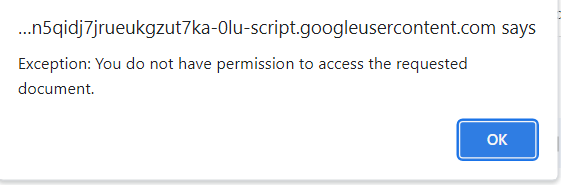
"Exception: You do not have permission to access the requested document."
- Data Destination Affected: Google Sheets
- Occurs: When attempting to load a Google Sheets report using the PMA add-on
Cause
This error occurs when you are logged into multiple Google accounts while using the Power My Analytics spreadsheets add-on.
Solution
To resolve this issue, follow these steps:
Manage Your Google Accounts:
- Log out of all Google accounts except the one that has access to the spreadsheet you're trying to use.
Re-authenticate the PMA Add-on:
Open your Google Sheets report and locate the Power My Analytics add-on in the menu.
Log out of the PMA add-on.
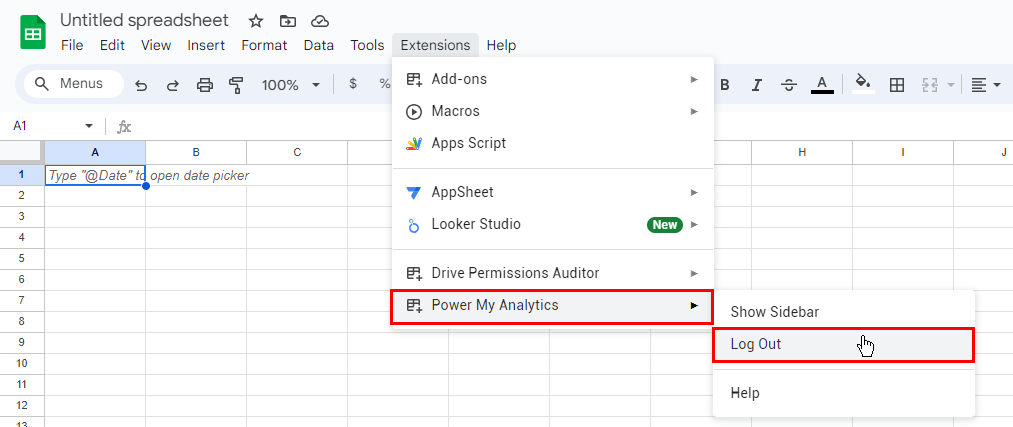
Log back into the PMA add-on.
Best Practices
To avoid this error in the future, consider the following best practices:
- When working with PMA and Google Sheets, try to use a single Google account session.
- If you need to switch between accounts, always verify that you're logged into the correct one before accessing PMA reports.