
Configure Data Source Sync Time and Google Sheets Refresh for the Latest Data
Last updated
Note: Keeping your marketing data up-to-date is crucial for accurate reporting and analysis. This guide will walk you through configuring your data source sync time and Google Sheets scheduled refresh to ensure you're always working with the most recent data.
Understanding Data Source Sync Time
Power My Analytics automatically warehouses the latest data from your connected sources nightly. Here's how it works:
- Each data source syncs once a day at its sync time. By default, the sync starts at 3 AM in the data source's time zone: the time zone of the platform account you connected, or UTC if the platform doesn't provide one.
- You can choose a different time zone, hour, or both in the Sources section of the hub under Action > Edit sync time.
- The sync time is when data collection starts. How long collection takes depends on how much data the source has and how busy the platform is, so give it time to finish before your reports refresh.
Setting Data Source Sync Time
To configure the sync time for your data sources:
- Navigate to the Sources section in your PMA hub.
- Locate the data source you want to configure in the main Sources table.
- Click the three-dot Action menu next to the data source.
- Select Edit sync time from the menu.
- In the Edit Sync Time dialog, choose a Timezone, an Hour, or both. If you leave Hour blank, the connector's default hour is used. For example: If you select America/New_York and 2 AM, the sync starts at 2 AM Eastern Time.
- Click Save, then click Save again to confirm.
To go back to the default schedule, open Edit sync time, click Reset, and save.
Note: You can change a data source's sync time once per 24-hour period, and a reset counts as a change. If the same platform login is connected in more than one hub, only the hub that controls the source can change its sync time.
Note: Connector defaults: Facebook and Instagram sources sync at 3 AM Pacific Time by default, Pinterest sources at 3 AM UTC, and YouTube sources at 3 AM in the account's time zone. You can change all of them with Edit sync time. Instagram Stories are collected every hour, so the sync time doesn't apply to them.
Choosing an Hour
Pick an hour after the day has ended in your platform account's time zone. A sync that starts before midnight there (for example, at 10 PM) can't include that day yet, so the day arrives with the next night's sync. For Facebook and Instagram, choose an hour after midnight Pacific Time, even if you select a different time zone.
Changing the Sync Time for Specific Accounts
To change the sync time for some of a data source's accounts, click the data source to open its list of accounts. Use Edit sync time in an account's action menu, or select several accounts to change them together.
Configuring Google Sheets Scheduled Refresh
To ensure your Google Sheets reports contain the most recent data:
Open the PMA spreadsheets add-on in Google Sheets (Extensions > Power My Analytics > Open sidebar).
Click Refresh at the bottom of the sidebar and select Schedule refresh.
Choose your refresh Frequency and Time:
- Monthly, weekly, daily, or hourly (hourly requires the Hourly Refreshes add-on, or a Custom plan agreement that includes it)
- Select the time of day for the refresh; the hint under Time shows the spreadsheet's time zone
Click Save.
The scheduled refresh uses the individual Google spreadsheet's time zone setting.
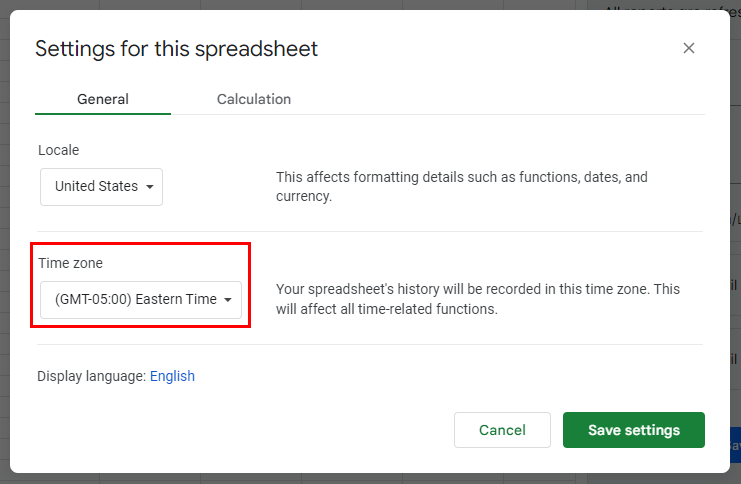
Setting Your Spreadsheet Time Zone
To align your spreadsheet with your data source:
- Open the File menu in Google Sheets.
- Click Settings > General tab > Time Zone.
- Set the time zone to match your data source's sync time.
Timing Your Scheduled Refresh
For optimal results:
- Allow a minimum of 2 hours after your data source's sync time.
- For example, if your data source syncs at 3 AM ET, schedule your spreadsheet refresh for 5:00 AM ET or later.
- If your sync time falls between 3 AM and 7 AM Pacific Time, allow more time. Most nightly syncs run in that window, so collection can take longer. The default sync time for Facebook and Instagram sources, 3 AM Pacific Time, falls in this window.
Note: Caution: If the nightly warehousing is incomplete before your spreadsheet refresh, you may not see the latest data in your spreadsheet.
Daylight Saving Time and Your Refresh Schedule
Your data source's sync time and your spreadsheet's scheduled refresh each follow their own time zone, including that time zone's daylight saving rules. When both use the same time zone, they move together and the time between them stays the same all year. When they use different time zones, a clock change can move your refresh an hour closer to the sync.
For example, Facebook and Instagram sources sync on Pacific Time by default, which changes between UTC-8:00 and UTC-7:00. If your spreadsheet's time zone is GMT, which never changes, the sync starts one hour later in your spreadsheet's time after Pacific Time falls back in November. A refresh with a 2-hour buffer in October has only a 1-hour buffer until clocks spring forward in March.
To keep yesterday's data in your report all year, use one of these options:
- Set your spreadsheet's time zone to the same time zone as your data source's sync time (not just one with the same offset today).
- Use Edit sync time to give your data source the same time zone as your spreadsheet, with an hour after the day has ended in your platform account's time zone (see Choosing an Hour above).
- Keep different time zones and add an extra hour to your buffer.
After a clock change, check that your report still includes yesterday. In the US, clocks change on the second Sunday in March and the first Sunday in November; other countries change on other dates.
Best Practices for Syncing and Refreshing
- Align time zones: Use the same time zone for your spreadsheet and your data source's sync time.
- Buffer time: Schedule refreshes at least 2 hours after your data source's sync time, and longer if the sync time falls between 3 AM and 7 AM Pacific Time.
- Plan for clock changes: If your spreadsheet and data source use different time zones, add an extra hour to the buffer.
- Monitor updates: Regularly check that your reports are displaying the most recent data.