
Connector Error: Can’t Mix and Match Fields from Different Tables
Last updated
This article will help you to solve the following Data Studio error:
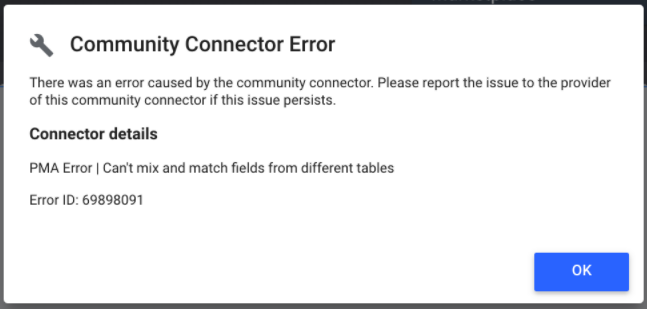
"Community Connector Error: PMA Error | Can't mix and match fields from different tables"
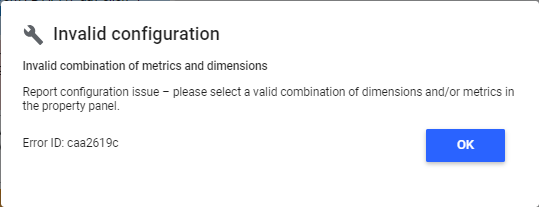
"Invalid configuration: Invalid combination of metrics and dimensions"
Cause
You will receive this error when you have attempted to create a Data Studio chart with two or more fields that do not share a common table. It is important to ensure that all fields in a chart have at least one common table.
Note: Google Sheets and Microsoft Excel reports using the Power My Analytics Spreadsheets Addon automatically prevent this error. The addon's field selection interface removes incompatible fields as options when they conflict with currently selected fields, preventing mix-and-match errors from occurring in spreadsheet reports.
Important: Using Data Builder? The same field-compatibility limit can appear as the source platform's own API error instead of this message. For example, combining YouTube Analytics video-level fields with channel-level or time-level fields returns YouTube's error "Code: 400; Message: The query is not supported. Check the documentation for a list of supported queries. (badRequest)". See YouTube Data Builder Error: "The Query Is Not Supported" (400 badRequest) for the YouTube-specific steps.
Solution
Use Schema Explorer to find fields that share a table:
In your Hub, click Schema Explorer under Tools in the left navigation pane.
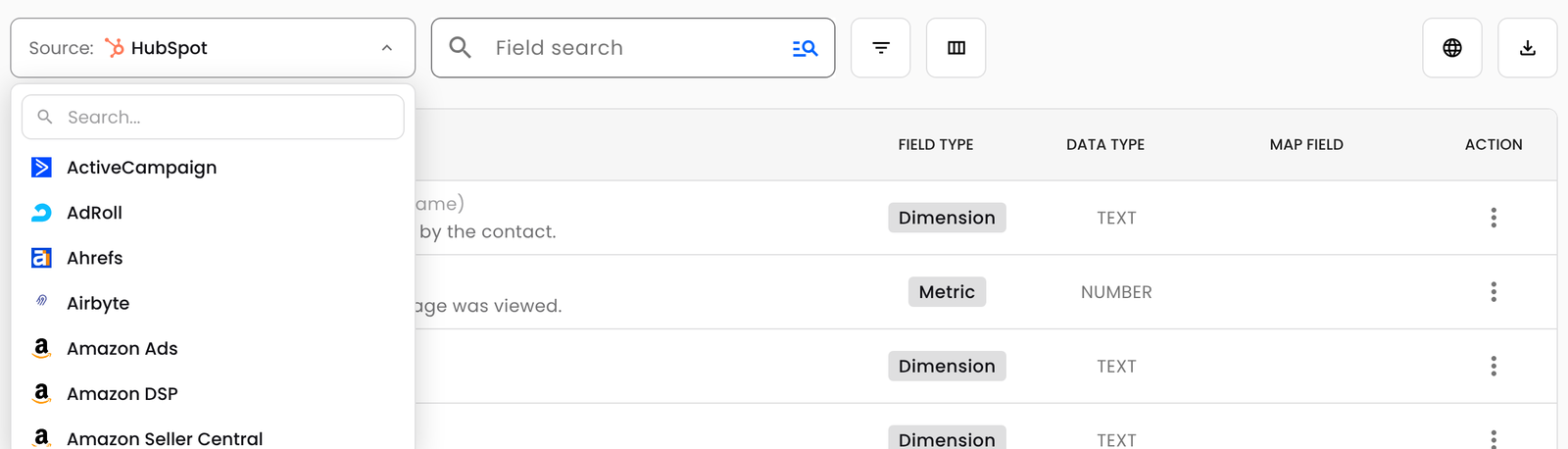
Click the Source dropdown and select the connector you would like to use.
Click the Filter button, then Table, and check the table you want to report from.
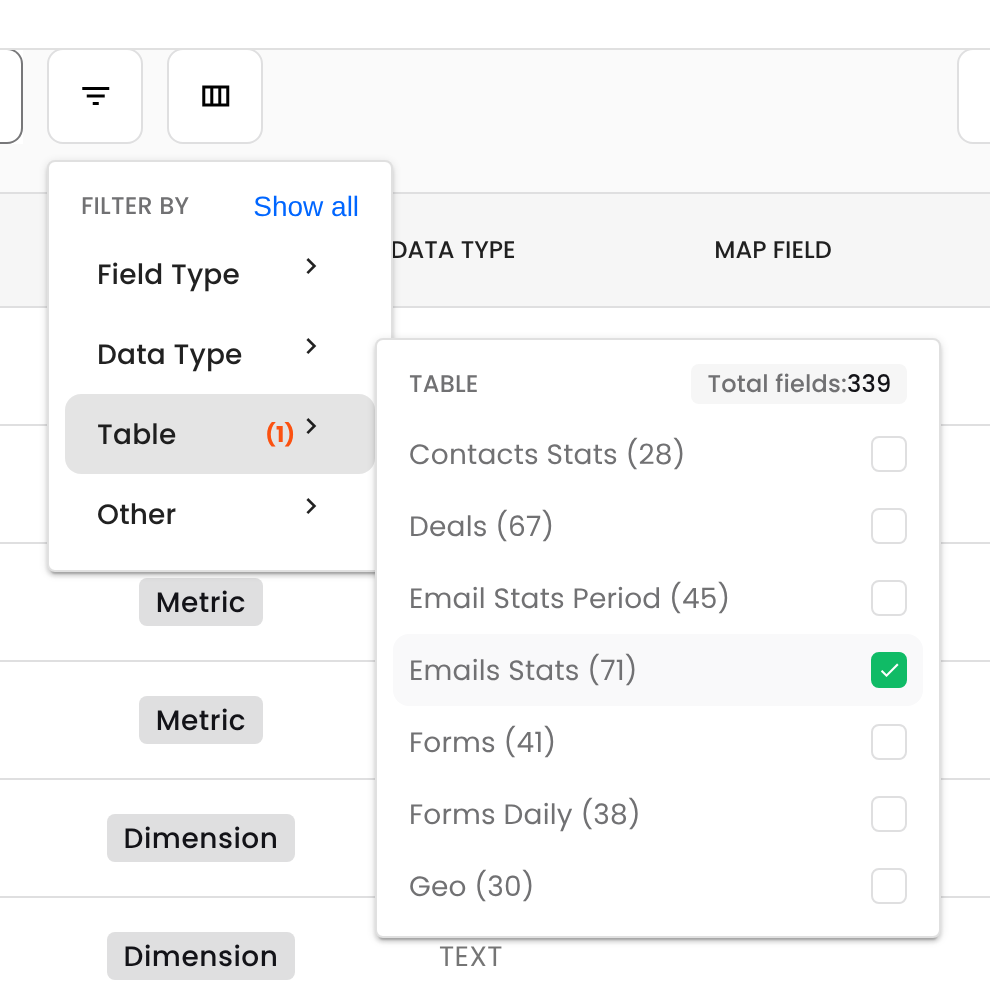
Build your chart using only the fields that remain in the list. Fields in the same table can always be used together.
To fix a chart that already shows this error, click the Columns button in Schema Explorer and turn on the Table column. It lists every table each field belongs to, so you can spot the field that doesn't share a table with the rest and replace it.
For more ways to explore fields, see How to Use Schema Explorer.