
An Instagram Account Is Missing From The List When Trying To Create A Report
Last updated
If an Instagram account is missing from the list when you create a report with the Facebook Ads data connector, it usually hasn't been turned on in your hub yet, or your hub's saved account list hasn't picked it up. You don't need to disconnect and reconnect your Facebook Ads source when you add an account to your Business Manager.
Cause
Your reports list only the accounts that are turned on (synced) for your Facebook Ads source in your hub. Your hub also keeps a saved list of the accounts your Facebook login can access and updates it every night, so an account you added to your Business Manager today may not be in that list yet. Meta can also take up to 24 hours to make a newly added or newly shared account available to Power My Analytics.
Resolution
- Go to Sources in your Power My Analytics hub.
- Click the three-dot menu in the Actions column next to your Facebook Ads source and select Add or remove accounts. If the account is in the Edit Synced Accounts list, check the box next to it and click Save.
- If the account isn't in the list, open the same three-dot menu, select Refresh accounts, and wait for the Accounts refreshed message. Then select Add or remove accounts again, check the account, and click Save.
- If the account was added in Facebook within the last 24 hours and it still isn't listed, wait 24 hours, then repeat step 3.
- Go back to Data Studio and check that the account is now available.
Note: You can run Refresh accounts once an hour for each source.
If the Account Still Doesn't Appear
Check your access in Facebook. On the Sources page, click your Facebook Ads source to open its panel. The Authorized User at the top of the panel is the Facebook login that connected the source. Make sure that login has access to the account in your Business Manager, then run Refresh accounts again.
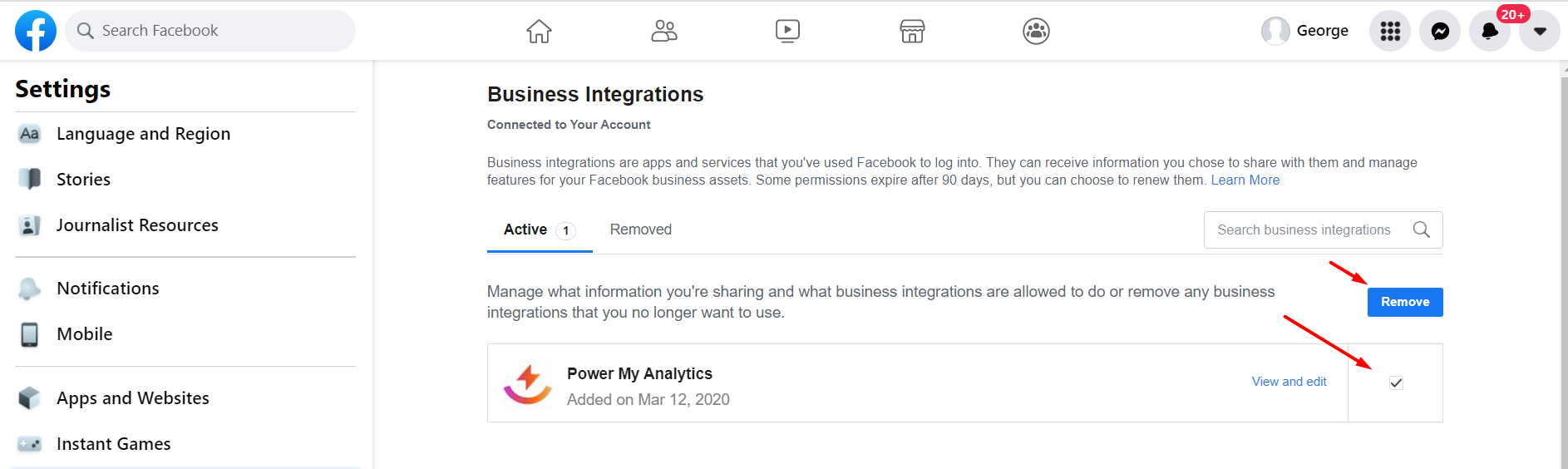
Check what Facebook shares with Power My Analytics. Go to your Facebook account business integrations, find Power My Analytics, and click View and Edit. If the business or Instagram account isn't shared with Power My Analytics, remove our app. Then, in your hub, select Reconnect source from your Facebook Ads source's three-dot menu, sign in, and opt in to all current and future Businesses, Pages, and Instagram accounts when Facebook asks. Reconnecting doesn't affect your existing reports.
Submit a ticket. If the account still doesn't appear, submit a ticket and include the email address of the Authorized User, the name and ID of the missing account, and the steps you've already tried.