
Instagram Insights Data Connector User Guide
Last updated
Note: Instagram Insights provides valuable data about your Instagram business or creator account's performance, audience, and content. This guide will walk you through connecting Instagram Insights to Power My Analytics and creating reports with the data.
Prerequisites
Before connecting Instagram Insights to Power My Analytics, ensure you meet the following requirements:
You must have an Instagram Business or Creator account
- Your account must use Facebook authentication
- Your account must not have age restrictions or other restrictions
- Your account must be linked to an active Facebook Page
- The Facebook Page must be connected to a Facebook Business Manager account
You must be logged in to the correct Instagram account in your browser
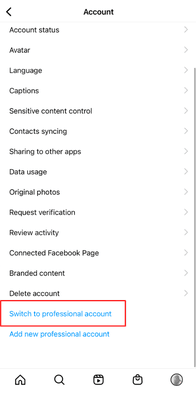
To switch to a Business or Creator account, go to Settings > Account and select Switch to professional account.
Important: Your Instagram account must be connected to a Facebook Page that is managed by a Facebook Business Manager account. Without this Business Manager connection, your Instagram page will not appear in Power My Analytics.
How to Verify Your Instagram-Facebook Connection
Ensure your Facebook Page is added to Business Manager at business.facebook.com.
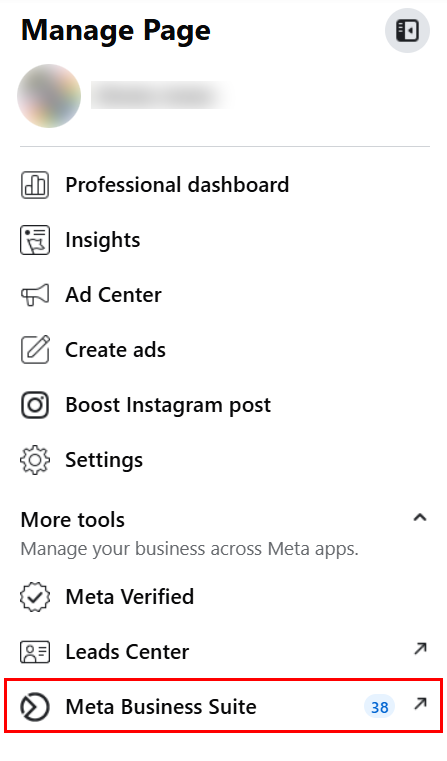
Go to your Facebook page and open the Manage Page side menu, then click Meta Business Suite.
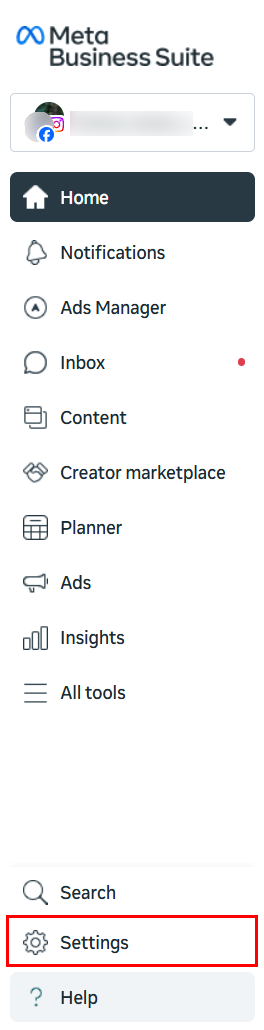
In the Meta Business Suite sidebar, select Settings.
Under Accounts, click on Pages.
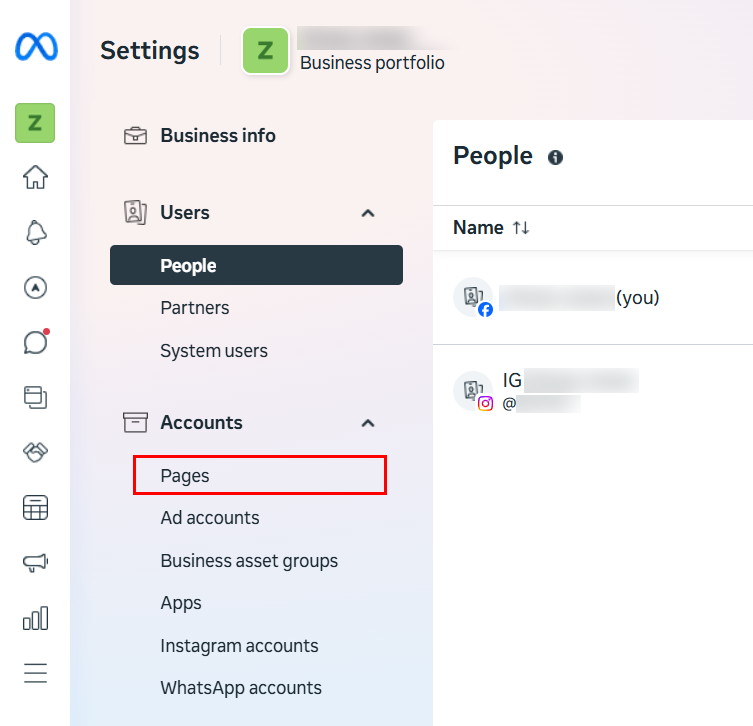
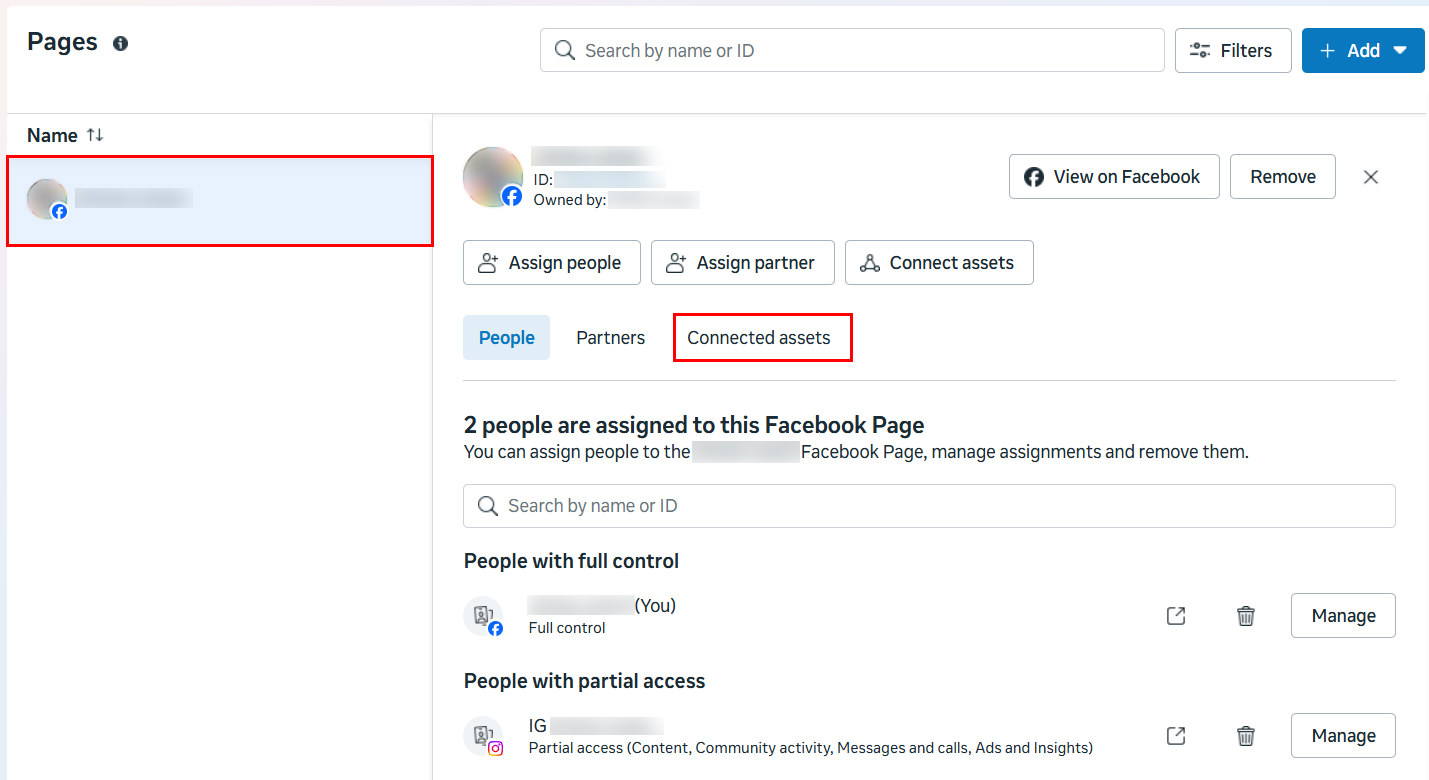
Select your Facebook page from the left column and click the Connected assets tab.
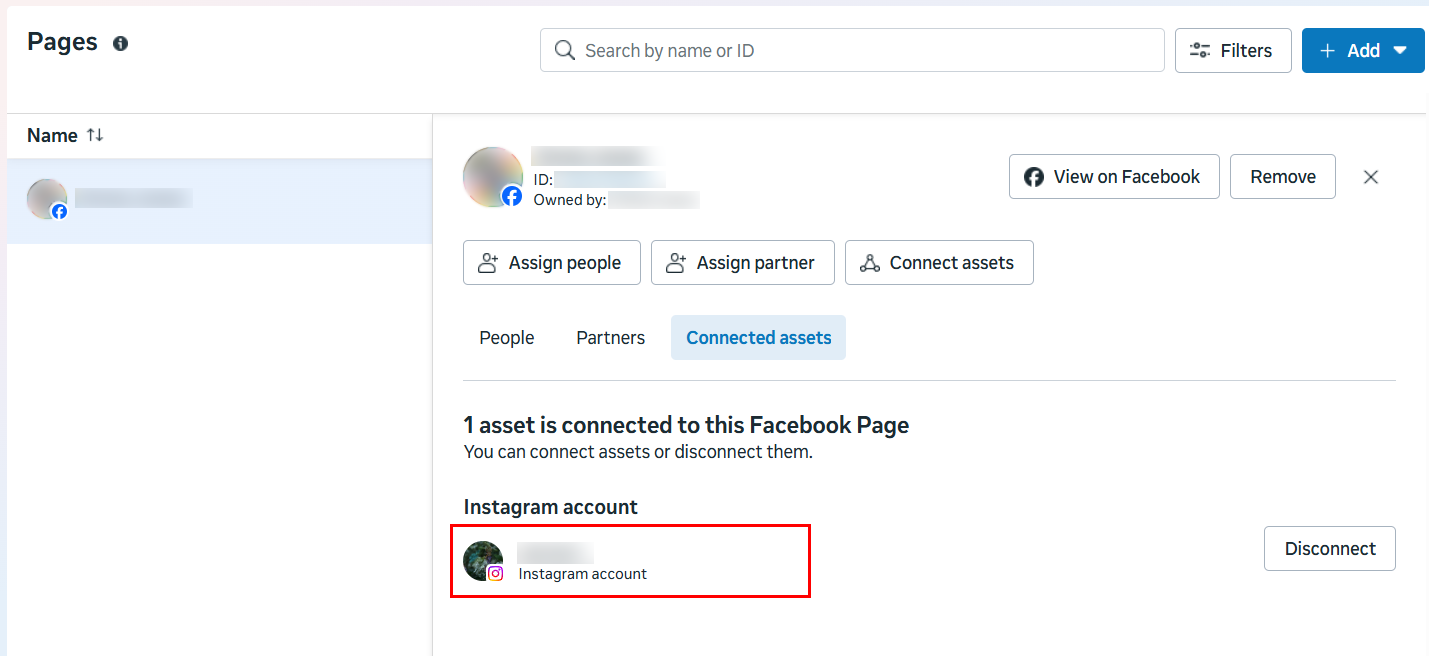
Confirm that your connected Instagram account is listed as a connected asset. If your Instagram account is successfully connected to your Facebook page, it will be listed under Instagram account.
After making these changes, go to Sources in your Power My Analytics hub. Click the three-dot menu in the Actions column next to your Instagram Insights source, select Refresh accounts, and then select Add or remove accounts to check your Instagram account and click Save. You don't need to disconnect and reconnect the source. Meta can take up to 24 hours to make a newly linked account available.
For additional help, please see our article Instagram Page Not Appearing in Manage Accounts.
Adding Instagram Insights as a Data Source
- To add the correct Instagram account, you must be logged in to the associated Facebook account in your browser. Open an Incognito window in your browser to log into the correct Facebook account before connecting with Power My Analytics.
- Navigate to your Hub and select Sources from the menu.
- Click + Add new source and choose Instagram Insights from the gallery.
- Sign in to your Facebook account to authenticate.
- Grant Facebook business access: Select "Opt in to all current and future Businesses". Click Continue.
- Grant Facebook page access: Choose "Opt in to all current and future Pages". Click Continue.
- Grant Instagram account access: Select "Opt in to all current and future Instagram accounts". Click Continue.
- Finalize permissions: Click Save, then click Got it.
Creating a Data Studio Report
Follow these steps to create a Data Studio report using your Instagram Insights data:
After adding Instagram Insights as a data source in the PMA hub, navigate to Reports > Data Studio
Select Instagram Insights under Create Data Studio Report (this will open the official Data Studio application in a new window)
Google Data Studio Configuration:
Step 1:
- Name your data source (e.g. "Instagram Insights - Organization Name")
- Choose Power My Analytics hub from dropdown
- Optional: Leave "Use report template for new reports" checked to use PMA demo template
- Click Next
Step 2:
- User Account: Select Instagram Insights account (real data) or "Sample Account" (sample data)
- Click Next
Step 3:
- Choose "Page" for reports
- Optional: Allow "Page" modification in reports
- Choose a time zone for your report (default: UTC)
- Optional: Allow "Timezone" modification in reports
- Click Connect (top right) to complete the data source configuration
Step 4:
- Click Create Report (top right)
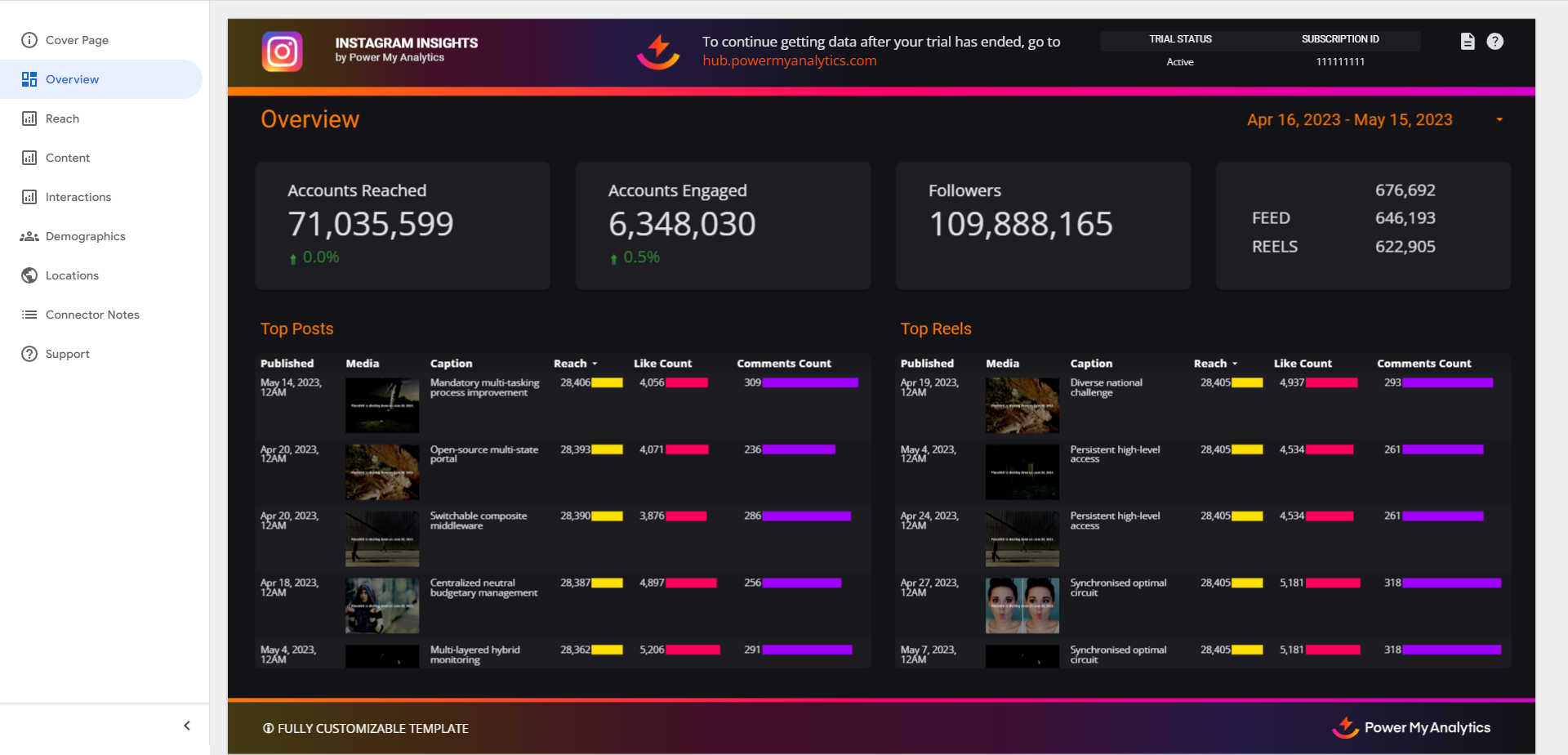
For a quick start, you can use our pre-built Instagram Insights demo template.
Key Reports and Fields
Instagram Insights data in Power My Analytics offers a wide range of metrics and dimensions. Here are some popular metrics you can use in your reports:
- Reach Metrics: Lifetime Reach, Daily New Followers, Accounts Reached
- Content Metrics: Total Interactions, Reach, Likes, Saves, Comments, Video Views
- All Surfaces Metrics: Likes Lifetime (All Surfaces), Comments Lifetime (All Surfaces), and Views Lifetime (All Surfaces), which also count engagement on the boosted, promoted, or ad versions of a post (see Reporting Paid and Organic Instagram Engagement Together)
- Demographic Metrics: Followers by Gender, Followers by Age
- Location Metrics: Followers by City, Followers by Country
For a complete list of available Instagram Insights fields, refer to the Schema Explorer or Instagram's developer guide.
Limitations and Important Considerations
Cached Data Requests with Unique Metrics and Date Dimension: When a unique metric is paired with the date dimension, this will result in a request for cached data instead of a request for live data. For more information, please see Understanding Cached and Live Data Requests.
Backfilling: Non-lifetime metrics can be backfilled up to 1 year.
- Lifetime metrics (Followers by City, Country, Gender Age, and Locale) cannot be backfilled.
- Followers metrics are lifetime fields.
Reach and engagement data: Reach and engagement data is organic only and does not include paid reach and engagement, except for Likes Lifetime (All Surfaces), Comments Lifetime (All Surfaces), and Views Lifetime (All Surfaces). These count a post's engagement on every surface Instagram shows it on, including its boosted, promoted, or ad versions (and Facebook, for views), but they don't separate paid from organic. To report paid Instagram activity, see Reporting Paid and Organic Instagram Engagement Together.
Engagement and Post Engagement Rate: The fields Engagement and Post Engagement Rate are deprecated. Instead, use the Total Interactions field in place of Engagement
Reach: PMA's Reach data is a total of daily sums and does not exclude repeat visitors. The Instagram Insights API does not send accurate numbers for this field.
Data delay: There is a data delay of 48 hours.
Follower count and demographic data: Follower count and demographic data is only available for users with over 100 followers.
Daily New Followers reporting: The Daily New Followers metric does not subtract daily unfollows and will not align with the metric in reports in Instagram’s UI. Instagram’s API does not currently provide a daily unfollows metric to subtract from this field. When first creating a report, Instagram’s API only allows this metric to be reported 30 days in the past.
Null data: The API returns null data instead of 0 where data does not exist.
Audience metrics: Audience metrics cannot be reported by “since” or “until”.
Demographic metrics: Demographic metrics are only available for top 45 performers as measured by follower count.
- These calculations only include followers with demographic data. For this reason, demographic metric sums will be lower than follower sums.
API and authentication: Facebook and Instagram use the same underlying API. PMA's Facebook Ads, Facebook Insights, Instagram Ads, and Instagram Insights data connectors use the same authentication process.
What does this mean for me?
- Your Instagram Insights reports run about two days behind, so compare periods that ended at least 48 hours ago.
- Engagement on ads and boosted posts isn't in the organic fields. Use the All Surfaces fields for a post's total across every surface, or follow Reporting Paid and Organic Instagram Engagement Together to see paid and organic activity side by side.
- Followers and demographic fields are lifetime values that can't be backfilled, so they won't show earlier history.
- Daily New Followers counts new followers without subtracting unfollows, so it will usually read higher than the net follower change Instagram shows.
48-Hour Data Delay
Note: Instagram Insights reports data for all fields with a delay of 48 hours.
This is a limitation of Meta’s API for Instagram Insights and is not a limitation of PMA. For this reason, the data reported by the following KPIs will be no more recent than 48 hours ago:
- Comments Lifetime
- Lifetime Reach
- Likes Lifetime
- Reels Interactions
- Saved
- Shares Lifetime
- Total Interactions Lifetime
Unavailable Data
Custom fields
Engagement and Post Engagement
Reels engagement data
Shares for album carousels
Paid reach and engagement data
- Workaround: Report paid Instagram activity from your Facebook Ads data source (see Reporting Paid and Organic Instagram Engagement Together)
Impressions, Lifetime Impressions, and Plays
- Workaround: Use Views metric instead
Realtime data
Reporting Instagram Reels
To report reels:
Add the dimension Media Product Type to a chart with the metrics Likes Lifetime, Comments Lifetime, and Total Interactions Lifetime.
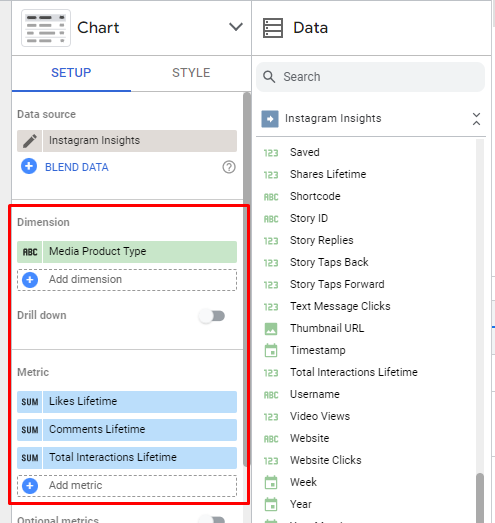
Note: Engagement data is not available for Reels.
Reporting Instagram Stories
Stories data is lifetime and may not align with Instagram dashboard:
- Instagram only keeps Stories for 24 hours and the data may not align at the time it is retrieved.
- Stories may be duplicated when reporting using the Date field. Use the Timestamp field instead to eliminate duplicate Stories.
Reporting Paid and Organic Instagram Engagement Together
Instagram Insights reports your organic activity. Paid (sponsored) Instagram activity, such as likes, comments, and views on your ads, comes from your Facebook Ads data source. To see both:
- Paid activity: In a Facebook Ads report, add the Publisher Platform dimension and filter it to Instagram. Then add metrics such as Impressions, Post Engagement, Post Reactions, Post Comments, Post Shares, Post Saves, and 3-second video plays.
- Organic activity: In an Instagram Insights report, use metrics such as Total Interactions Lifetime, Likes Lifetime, Comments Lifetime, and Views Lifetime.
- Both in one place: Add a Facebook Ads data table and an Instagram Insights data table to the same Data Builder dataset, or add both data sources to the same Data Studio report. See Combining Data from Multiple Sources in Your Report.
Important: Don't add the All Surfaces fields on top of Facebook Ads post metrics. The All Surfaces fields already include engagement on the boosted version of a post, so that engagement would be counted twice.
Note: Publisher Platform is requested live from Meta, so charts that use it can take longer to load over long date ranges. See the Facebook Ads Data Connector User Guide for details.
Troubleshooting
See our article Troubleshooting Instagram Insights for information on issues that may affect Instagram connectors.
Related: Why Per-Video and Per-Post Metrics Can't Be Reported by Day (YouTube, Facebook, Instagram, TikTok) — why per-post media metrics are lifetime totals and how to build a daily view.