
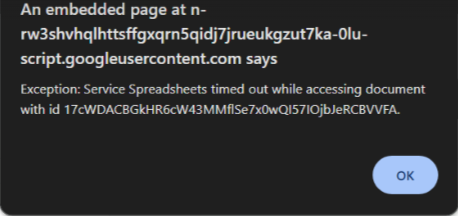
Google Sheets Error: "Exception: Service Timed Out: Spreadsheets" or "Service Spreadsheets timed out when accessing document"
Last updated
Note: When using the Power My Analytics spreadsheets add-on in Google Sheets, you may encounter a timeout error that prevents your reports from refreshing. This guide will help you understand the cause of this error and provide a straightforward solution to get your reports running smoothly again.
Error
"Exception: Service Timed Out: Spreadsheets"

"Exception: Service Spreadsheets timed out when accessing document with id"
Cause
This error may occur when your spreadsheet contains a large number of complex formulas.
- PMA must wait for all formulas in a sheet to calculate before executing its queries.
- When there are too many time-consuming formulas, it can lead to a timeout error.
- Heavy aggregation formulas, such as many SUMIFS or COUNTIFS formulas or ARRAYFORMULA formulas over entire columns, are a common cause. Scheduled refreshes fail the same way, and a spreadsheet that refreshed without trouble for months can start timing out as its reports grow.
- This issue originates from Google Sheets limitations, not from the PMA add-on itself.
Solution
First, go to the "PMA Configuration" tab of your spreadsheet and look at the "Error" column.
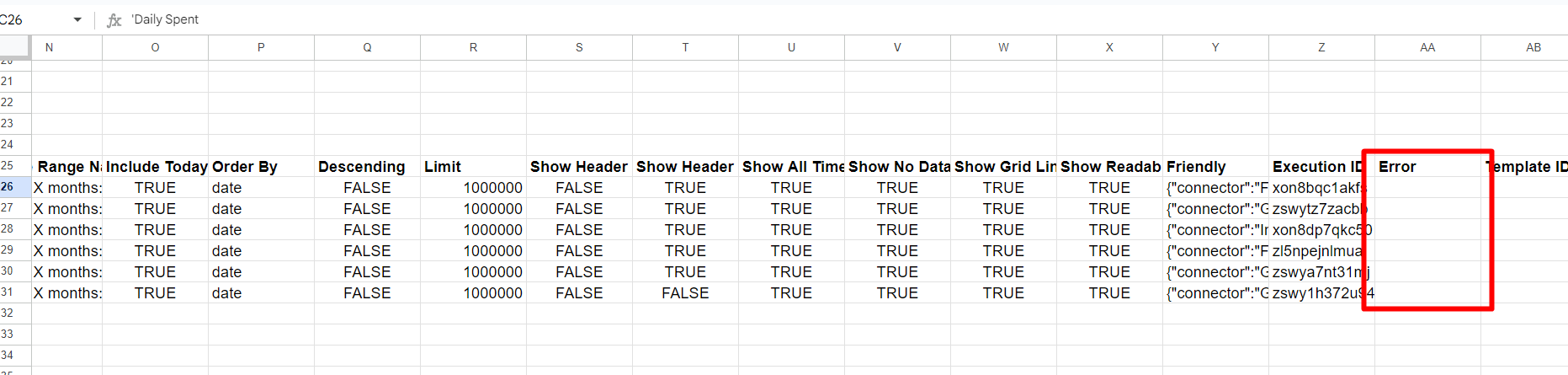
If there is any error message present:
- Try running your report again.
- If the error remains, please contact our support team.
If no error messages are present, the timeout error may be caused by a spreadsheet using a large number of complex formulas. If you're using many formulas in your spreadsheet, we recommend a two-document strategy: load your report data into one Google Sheets document that doesn't use any formulas, then do your calculations in a second Google Sheets document that references the data from the first.
Important: These must be two separate Google Sheets documents, not two tabs in the same spreadsheet.
- Create a Google Sheets document for your raw PMA data, and set up your reports to load into it. Don't add formulas to this document.
- Create a second Google Sheets document for your formulas.
- In the second document, bring in the report data with the IMPORTRANGE function, and point your formulas at the imported data. What to Do When a Report Is Loading Slowly shows how, step by step.
- Refresh your PMA data in the first document when needed, or on a schedule.
By adopting this two-document approach, you can effectively bypass the timeout error.
Other Ways to Reduce the Load
- Split long date ranges into reports by period, for example one report for last year and one for this year, and move reports for past periods to a spreadsheet without a scheduled refresh.
- Spread your reports across several spreadsheets, so each refresh has less to do.
- Do heavy calculations in BigQuery. If you work with a lot of data, export your Data Builder table to BigQuery and do your aggregation there. Data exports are available as a paid add-on on the Business, Grow, and Pro plans, and are included with the Custom plan when your agreement includes data exports.
If your scheduled refresh keeps failing for another reason, see Google Sheets Scheduled Refresh Not Running or Failing.