
How to Connect to BigCommerce
Last updated
Note: This guide will walk you through the process of getting the credentials you need to connect to BigCommerce with Power My Analytics. You will need to create a store-level API account and obtain your API Path and Access Token.
Before Getting Started You'll Need
Creating a new BigCommerce API account and access token
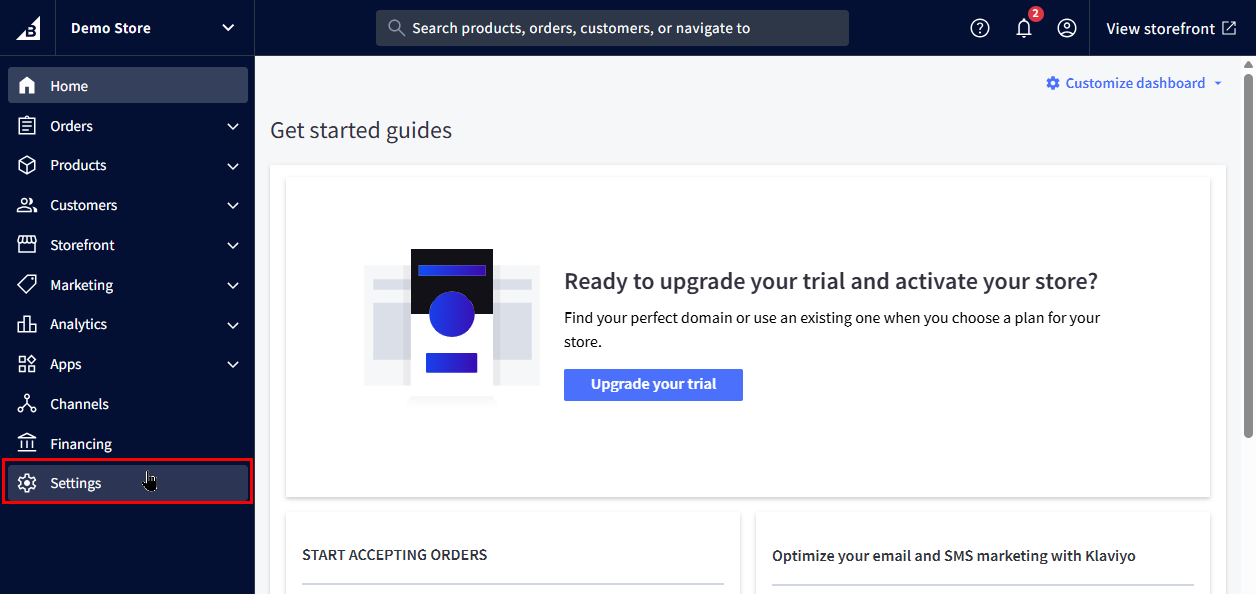
Log in to your BigCommerce account at login.bigcommerce.com. Click on Settings in the left sidebar.
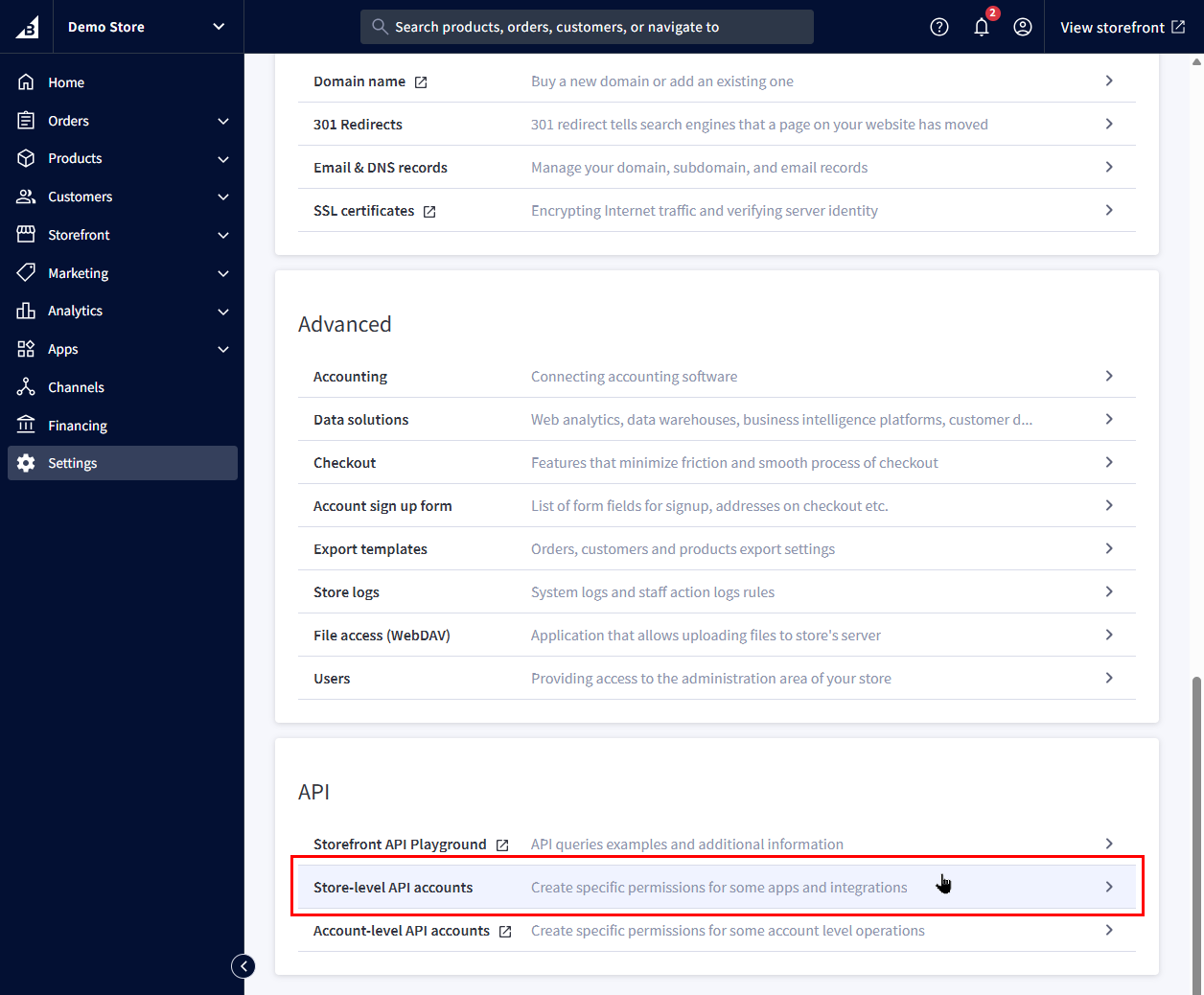
In Settings, scroll down to the API section and click on Store-level API accounts.
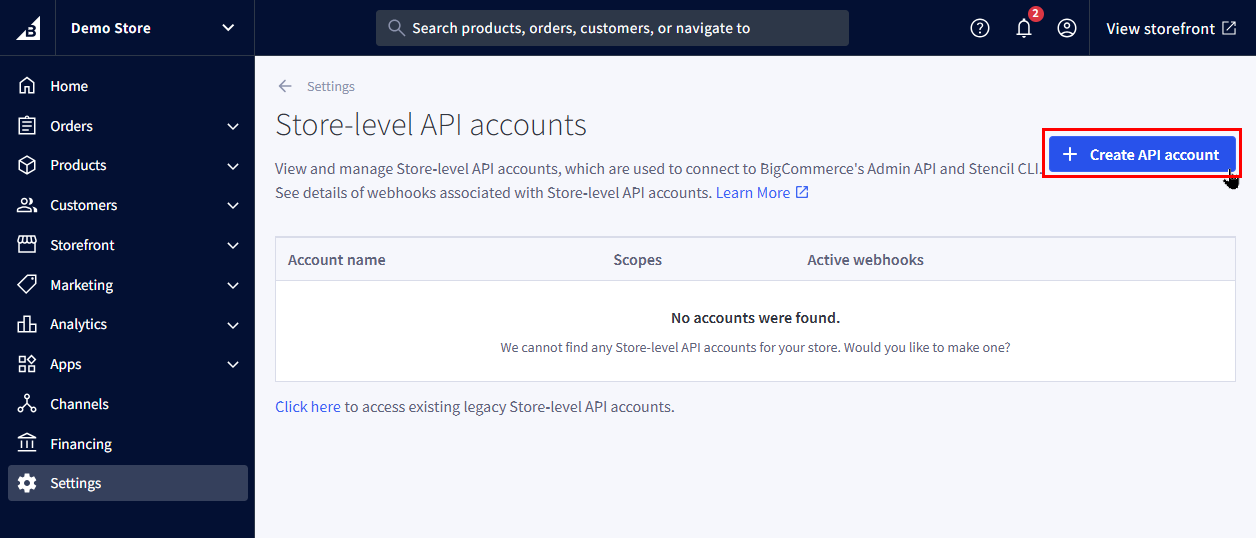
Click the + Create API account button in the upper right corner.
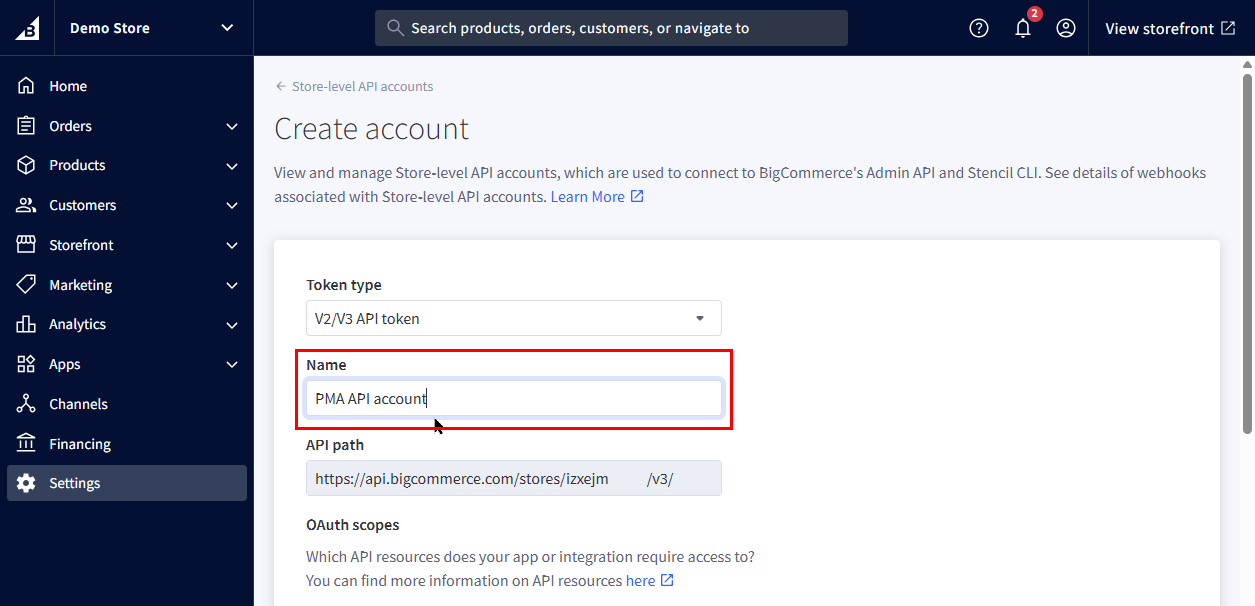
On the Create account page, make sure Token type is set to V2/V3 API token.
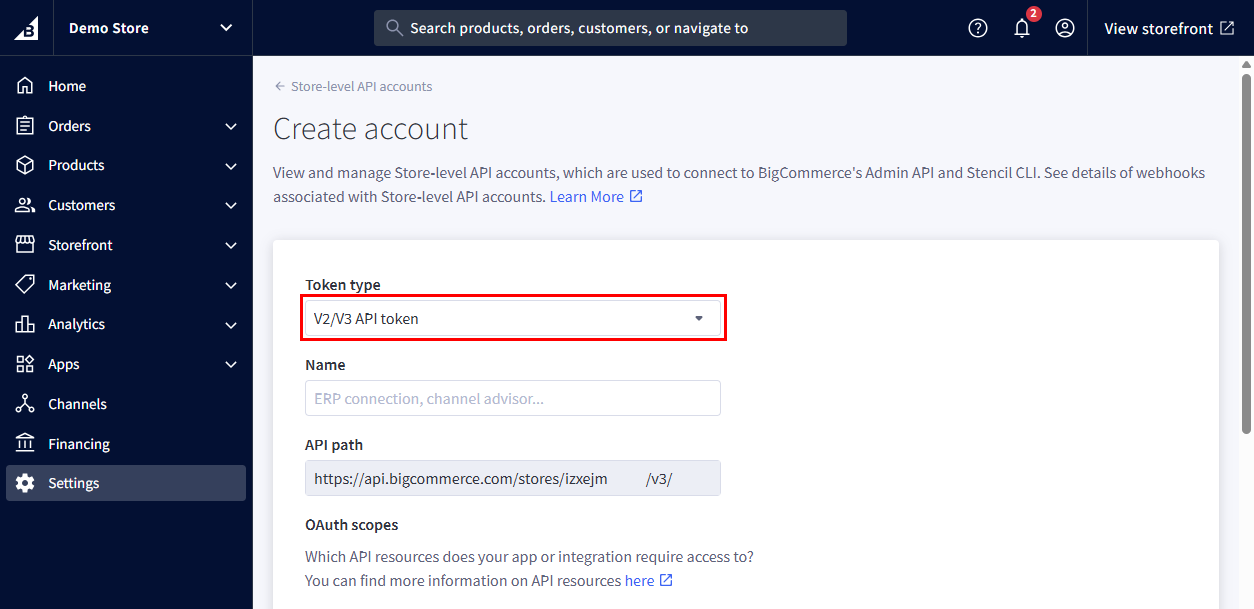
Under Name, enter a name for this API account.
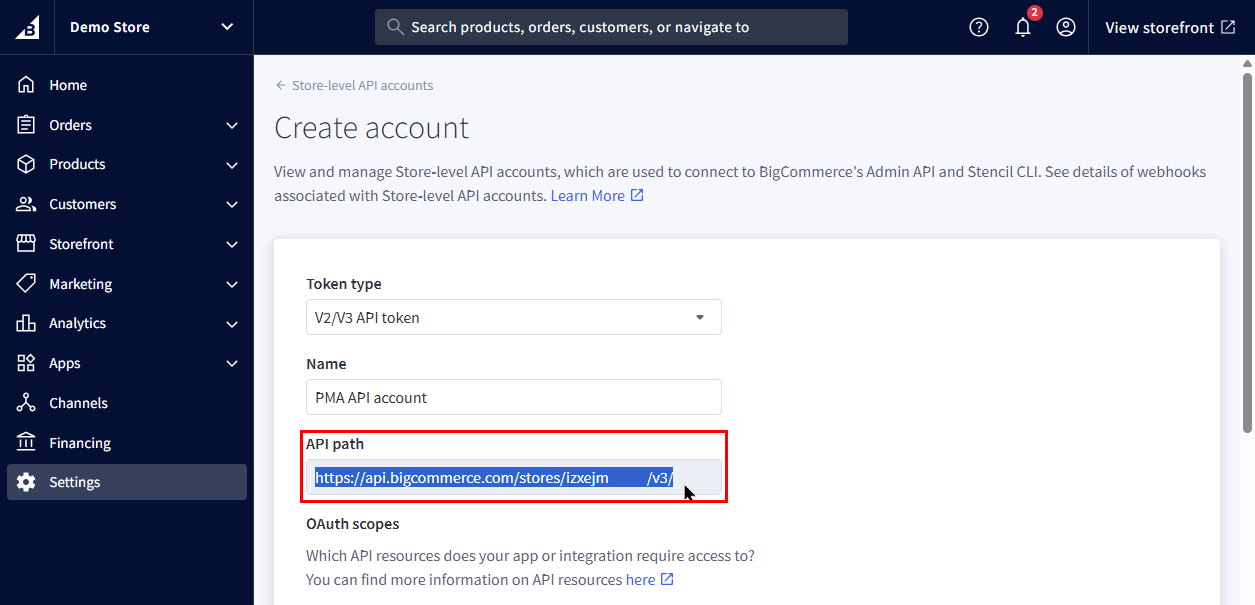
Select your API path and copy this information. You'll need to enter your API path into the Power My Analytics hub when connecting your BigCommerce store.
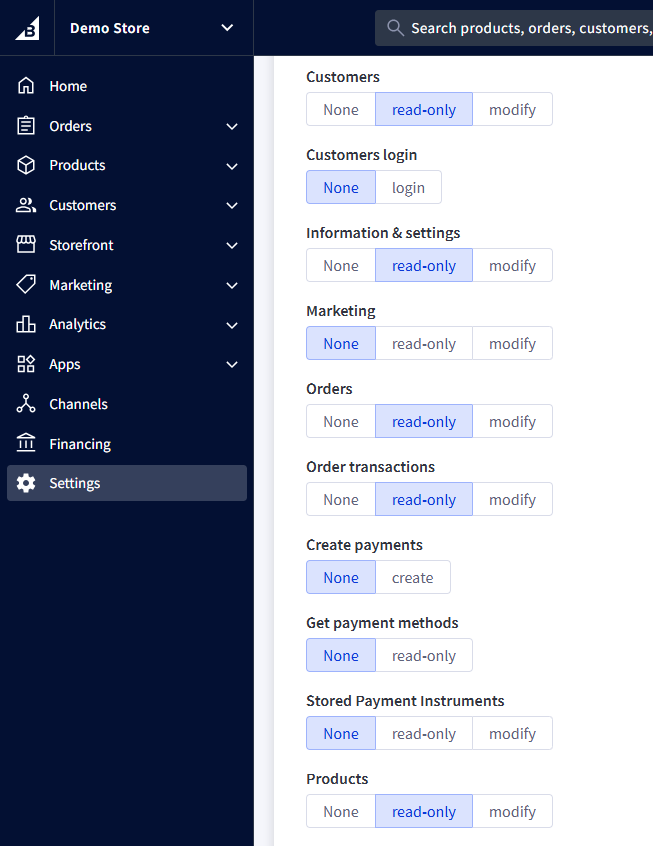
Scroll down to OAuth scopes. Set the following permission scopes to read-only:
- Channel Settings
- Customers
- Information & Settings
- Orders
- Order Transactions
- Products
Note: The Channel Settings scope lets Power My Analytics report your sales data by sales channel. If your store sells through more than one channel, make sure this scope is set to read-only. (The separate Channel Listings scope is not needed.)
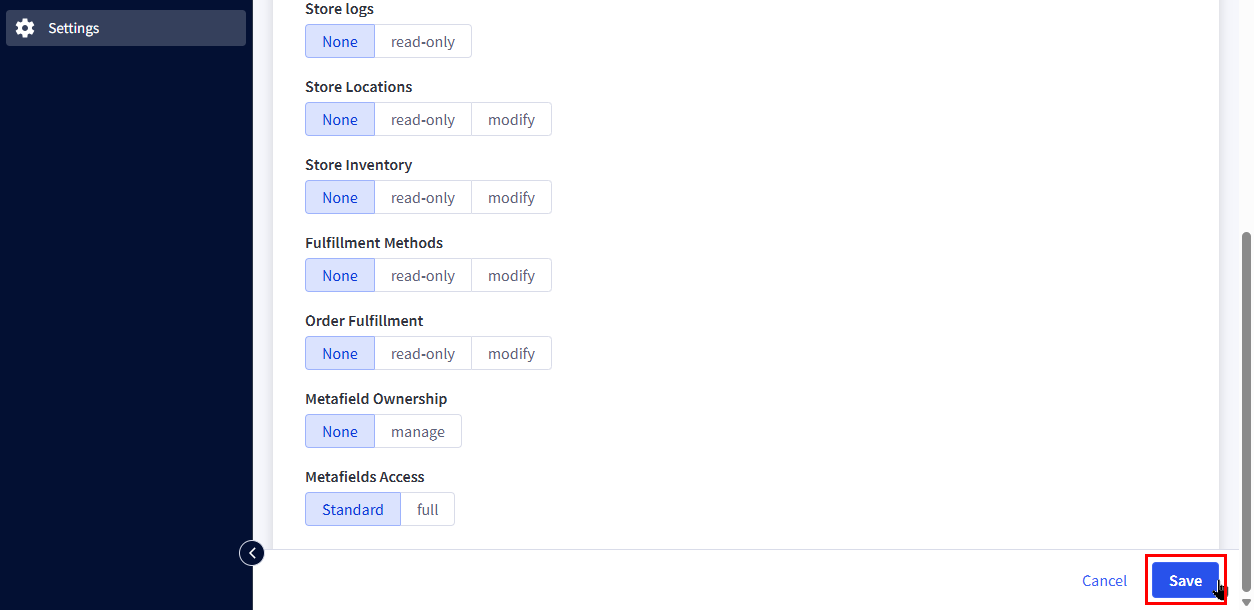
Scroll down and click the Save button in the lower right corner.
A popup will appear with your client ID, client secret, and access token. Copy and store your access token, as this will be needed when connecting your store to PMA.
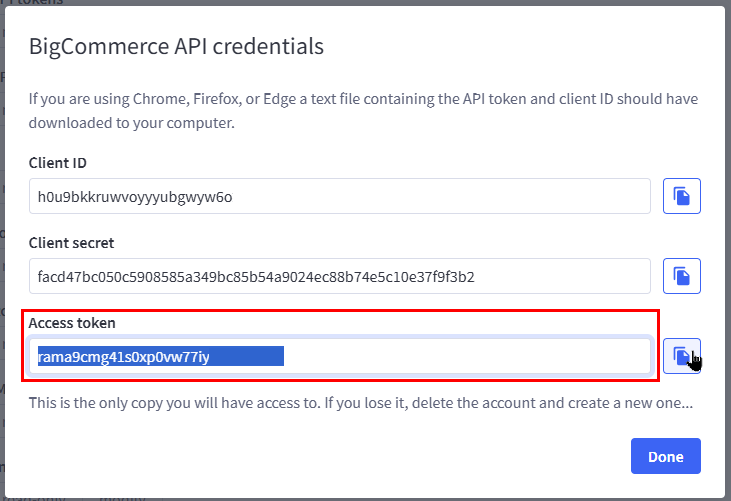
Then click Done. Now it's time to connect your store with PMA.
Adding BigCommerce as a Data Source
Log in to your Power My Analytics Hub.
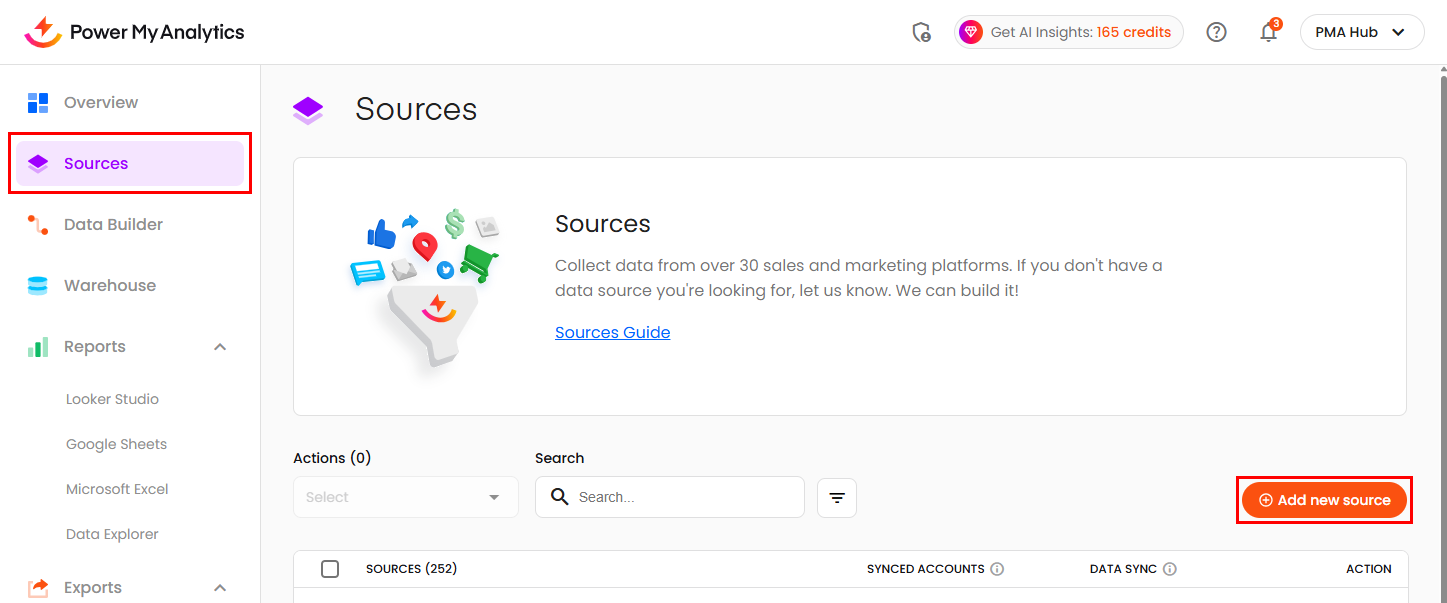
Navigate to Sources from the main menu and click + Add New Source.
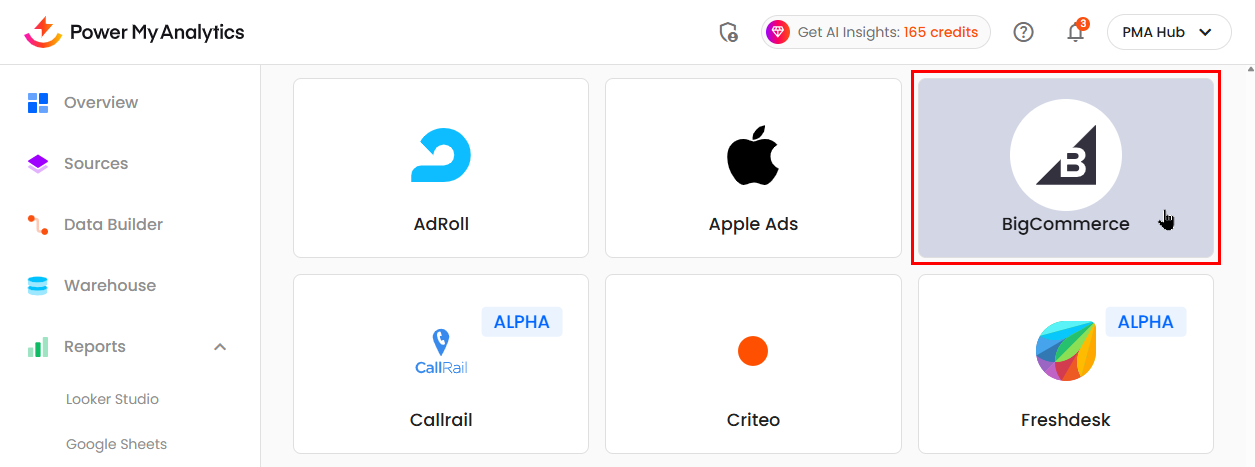
Select BigCommerce from the gallery of available sources.
Enter your API Path and Access Token when prompted.
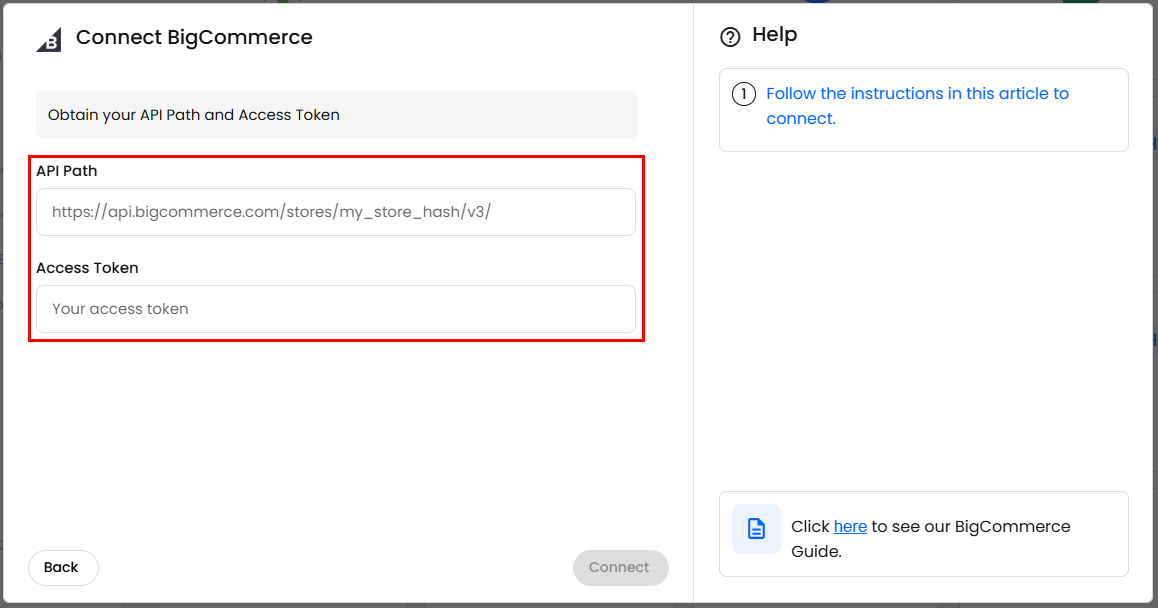
Click Connect to authenticate and link your BigCommerce account.
Once connected, your BigCommerce store will appear in your list of active data sources. Your store's data will automatically begin syncing to your Power My Analytics data warehouse. When the initial backfill is finished, you can then use this data in Data Studio reports, Google Sheets, or export it to your preferred data destination.
Adding the Channel Settings Scope to an Existing Connection
If you connected BigCommerce before Channel Settings was part of the scope list above, your reports can't show your data by sales channel. BigCommerce doesn't let you change the scopes of an existing API account, so you'll create a new API account and reconnect your source:
- Follow the steps in Creating a new BigCommerce API account and access token above to create a new API account, setting all six permission scopes to read-only, including Channel Settings.
- Copy the new API path, then copy the new access token from the popup when you save.
- In your Power My Analytics Hub, reconnect your BigCommerce source using the new API Path and Access Token. See Disconnect and Reconnect a Source from Your Hub for the steps.
- In your reports, use the Channel Name field to see your results by sales channel. If orders from before you reconnected don't show a channel, backfill that date range.
Note: When you build reports, use Channel Name (or Channel ID) for your sales channels. The Account Name field is the name of your Power My Analytics connection, so it always shows a single value.