
BigCommerce Data Connector User Guide
Last updated
Note: Are you looking to streamline your BigCommerce data analysis and reporting? Power My Analytics' BigCommerce connector automates the collection and integration of your e-commerce data, saving you time and providing deeper insights into your online store's performance. This guide will walk you through setting up the BigCommerce data source, creating reports, and understanding key metrics to help you make data-driven decisions for your business.
Prerequisites
Before you begin, ensure you have:
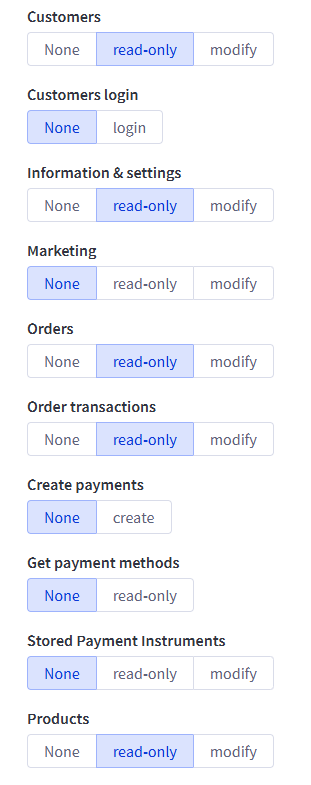
An active BigCommerce store-level API account with read-only permissions for the following scopes:
Channel Settings
Customers
Information & Settings
Orders
Order Transactions
Products
The API path for your account
The access token for your account
For more information on creating a store-level API account and obtaining your API path and access token, please see How to Connect to BigCommerce.
Adding BigCommerce as a Data Source
- Log in to your Power My Analytics Hub.
- Navigate to Sources from the main menu.
- Click + Add New Source.
- Select BigCommerce from the gallery of available sources.
- Enter your API Path and Access Token when prompted.
- Click Connect to authenticate and link your BigCommerce account.
Creating a Data Studio Report
Follow these steps to create a Data Studio report using your BigCommerce data:
In the Power My Analytics Hub, go to Reports > Data Studio
Select BigCommerce under Create Data Studio Report (this will open the official Data Studio application in a new window)
Google Data Studio Configuration:
Step 1:
- Name your data source (e.g., "BigCommerce - Your Store Name")
- Choose your Power My Analytics hub from the dropdown
- Optional: Leave "Use report template for new reports" checked to use the PMA demo template
- Click Next
Step 2:
- User Account: Select your BigCommerce account (for real data) or "Sample Account" (for sample data)
- Click Next
Step 3:
- Optional: Choose "Optional - Order Status Filter" for reports
- Optional: Allow "Optional - Order Status Filter" modification in reports
- Click Connect (top right) to complete the data source configuration
Step 4:
- Click Create Report (top right)
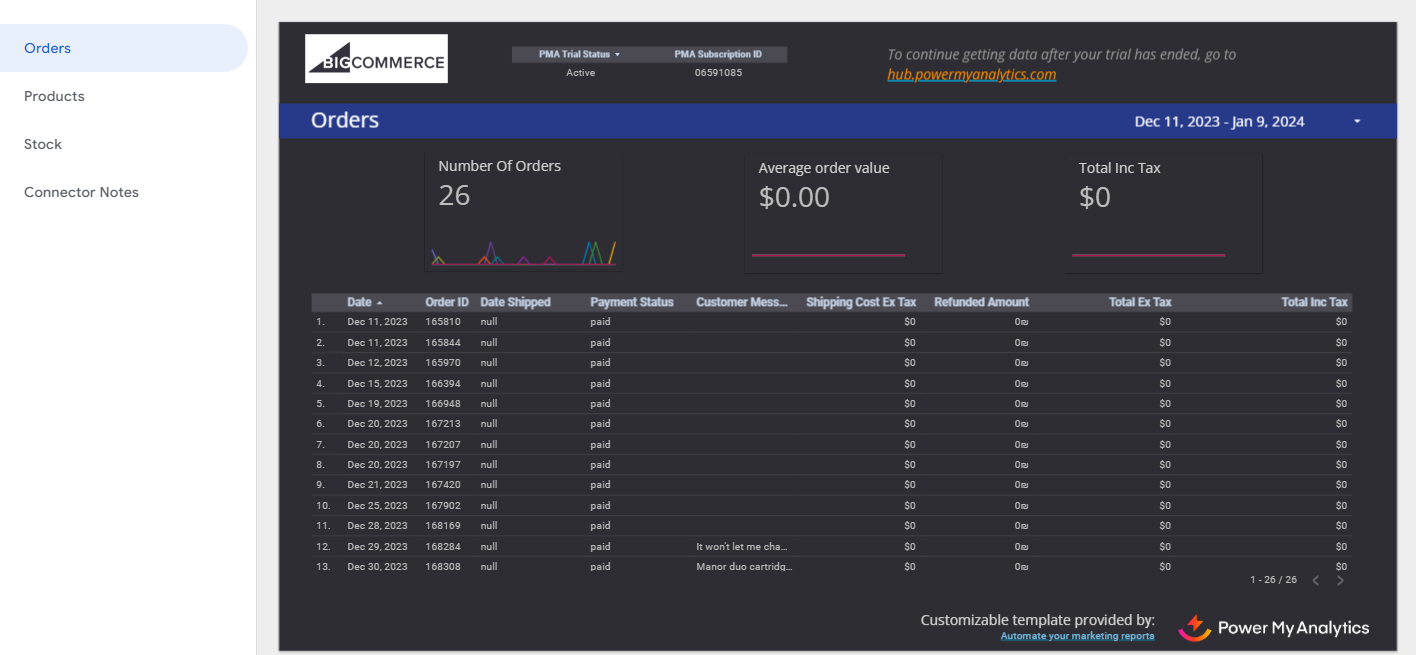
For a quick start, use our pre-built BigCommerce demo template.
Key Reports and Fields
BigCommerce data in Power My Analytics offers a wide range of metrics and dimensions. Here are some popular metrics you can use in your reports:
- Orders Metrics: Shipping Cost Ex Tax, Refunded Amount, Total Ex Tax, Total Inc Tax
- Product Sales Metrics: Price, Reviews Count, Total Sold
- Inventory Metrics: Stock Quantity, Total Sold
- Channel Dimensions: Channel ID, Channel Name, Channel Platform, Channel Status, Channel Type
What you'll see in your report
Your reports show your store's orders, customers, products, and inventory, and (with the Channel Settings scope) your sales channels. If you use the Order Status Filter, order and revenue figures include only the orders with the statuses you select.
For a complete list of available BigCommerce fields, refer to the Schema Explorer.
Reporting by Sales Channel
If your store sells through more than one sales channel (for example, storefronts, marketplaces, or point-of-sale), you can break out your BigCommerce data by channel:
- Use the Channel Name (or Channel ID) field to group your orders by sales channel. For example, a store that sells through a main storefront and three other channels sees four rows (one per channel) when it groups orders by Channel Name.
- Account Name is the name of your Power My Analytics connection, not a sales channel, so a report grouped by Account Name always shows a single value.
- Channel data requires the Channel Settings (read-only) scope on your BigCommerce API account. If you connected before this scope was part of the setup steps, see How to Connect to BigCommerce to create a new API account and reconnect your source.
Limitations and Important Considerations
- Cached Data Requests with Unique Metrics and Date Dimension: When a unique metric is paired with the date dimension, this will result in a request for cached data instead of a request for live data. For more information, please see Understanding Cached and Live Data Requests.
- Backfilling: Power My Analytics will backfill 24 months of data when you first connect your BigCommerce account as a data source.
- Channel data: Reporting by sales channel requires the Channel Settings (read-only) scope on the API account you connect with. Without it, Power My Analytics can't read your store's sales channels, so channel details such as Channel Name won't be available in your reports.
What does this mean for me?
- Charts that pair a unique metric with the date dimension show cached data rather than live data.
- Your first 24 months of BigCommerce data load automatically when you connect; you don't need to request them.
- To report by sales channel, make sure your BigCommerce API account includes the Channel Settings (read-only) scope.
Good to know
- If your report shows $0 revenue or missing orders, check the Order Status Filter: make sure it includes the statuses your store uses for completed sales (for example, Completed and Shipped).
Unavailable Data
- Line-item reports
- Images
- Web analytics data
- Realtime data
- Custom fields
Troubleshooting
See our article Basic Troubleshooting for information on issues that may affect the BigCommerce connector.