
Microsoft Advertising Data Connector User Guide
Last updated
Note: Microsoft Advertising (formerly known as Bing Ads) is a powerful platform for search advertising, keyword targeting, and more. This guide will walk you through how to connect Microsoft Advertising to Power My Analytics, create reports, and leverage key metrics to optimize your advertising campaigns.
Prerequisites
Before connecting Microsoft Advertising to Power My Analytics, ensure you have:
- A Microsoft Advertising account with either Super Admin or Advertiser Campaign Manager role
- Multifactor authentication enabled on your Microsoft Advertising account
Grant Access to an Account in Microsoft Advertising
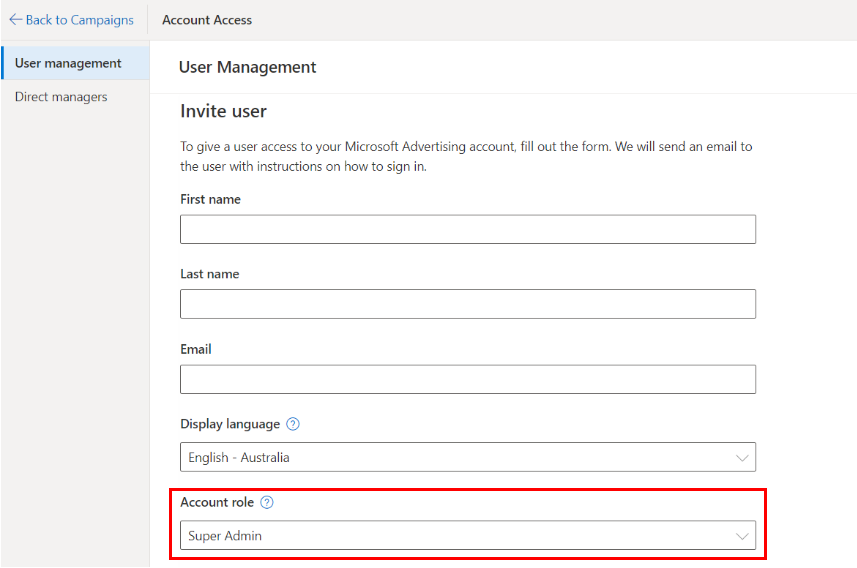
To grant access to an account in Microsoft Advertising:
- Log in to Microsoft Advertising.
- Go to Tools > Account access.
- Under User management, click Invite user.
- Make sure the Account role is set to Advertiser Campaign Manager or Super Admin.
Adding Microsoft Advertising as a Data Source
- Log in to your Power My Analytics hub.
- Navigate to Sources in the main menu.
- Click + Add new source.
- Select Microsoft Advertising from the gallery.
- Sign in to your Microsoft account to authenticate.
Creating a Data Studio Report
Follow these steps to create a Data Studio report using your Microsoft Advertising data:
After adding Microsoft Advertising as a data source, go to Reports > Data Studio in your PMA hub
Select Microsoft Advertising under Create Data Studio Report (this will open the official Data Studio application in a new window)
Google Data Studio Configuration:
Step 1:
- Name your data source (e.g., "Microsoft Advertising - Your Organization")
- Choose your Power My Analytics hub from the dropdown
- Optional: Leave "Use report template for new reports" checked to use the PMA demo template
- Click Next
Step 2:
- User Account: Select your Microsoft Advertising account (or "Sample Account" for sample data)
- Click Next
Step 3:
- Choose "Accounts" and "Currency" for your reports
- Optional: Allow "Accounts" modification in reports
- Click Connect in the top right to complete the configuration
Step 4:
- Click Create Report in the top right
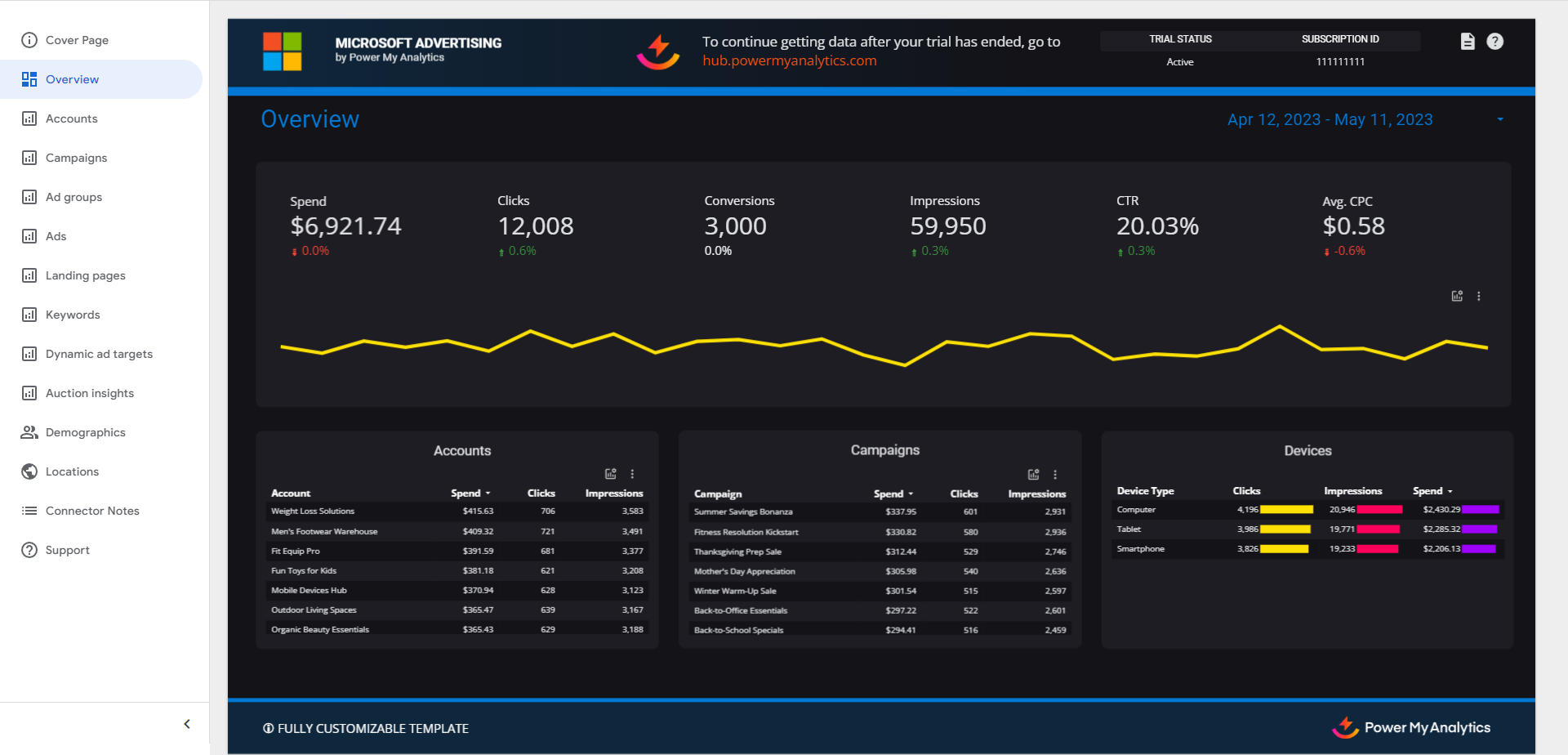
For a quick start, use our pre-built Microsoft Advertising demo template.
Key Reports and Fields
Microsoft Advertising data in Power My Analytics offers a wide range of metrics and dimensions. Here are some popular metrics you can use in your reports:
- Account Metrics: Clicks, Impressions, CTR, Avg. CPC, Spend, Conv.
- Campaign Metrics: Clicks, Impr., CTR, Avg. CPC, Spend, Conv.
- Ad Group Metrics: Clicks, Impr., CTR, Avg. CPC, Spend, Average cost per 1,000 impressions (CPM)
- Ad Metrics: Clicks, Impr., CTR, Avg. CPC, Spend, Conv.
- Landing Page Metrics: Impressions, Clicks, CTR, Avg. CPC, Spend, Conv.
- Keyword Metrics: Clicks, Impr., CTR, Avg. CPC, Spend
- Dynamic Ad Target Metrics: Impressions, Clicks, CTR, Avg. CPC, Spend
- Auction Metrics: Overlap rate, Position above rate, Top of page rate, Outranking share
- Demographic Metrics: Spend, Clicks, Impressions by Company Name, Industry Name, Job Function Name; Impressions by Age, Impressions by Gender
- Locations: Spend, Clicks, Impressions by Country
Account Identification Fields
The Microsoft Advertising connector includes these fields for identifying accounts in your reports. Not every field is in every table, so check where each one is available before you build your report:
| Field | What it is | Where it's available | Example value |
|---|---|---|---|
| Account | The name of the Microsoft Advertising account. Use it to label or filter accounts in your reports. If two of your accounts have the same name, the Account ID is added in parentheses so you can tell them apart (for example, Acme Outdoor Gear (151234567)). | Every Microsoft Advertising table | Acme Outdoor Gear |
| Account Name | The name of the Microsoft Advertising account. | Demographics, Demographics Professional, and Geographic tables only. In all other tables, use Account. | Acme Outdoor Gear |
| Account ID | The numeric ID that Microsoft Advertising assigns to the account. Use it to join or filter data by account. | Every Microsoft Advertising table | 151234567 |
| Customer ID | The numeric ID of the Microsoft Advertising manager account (customer) that owns the account. | Account, Adgroups, and Search tables | 251876543 |
| Customer Name | The name of the Microsoft Advertising manager account (customer) that owns the account. | Account, Adgroups, and Search tables | Acme Retail Group |
Note: Account ID and Account Number aren't the same. The account selector in Microsoft Advertising also shows an alphanumeric Account Number for each account (for example, F149KD7R). The Account ID and Customer ID in your reports are numbers, so they won't match the Account Number. To look up an account's Account ID in Microsoft Advertising, go to Settings > Account settings.
For a complete list of available Microsoft Advertising fields, refer to the Schema Explorer.
Limitations and Important Considerations
Cached Data Requests with Unique Metrics and Date Dimension: When a unique metric is paired with the date dimension, this will result in a request for cached data instead of a request for live data. For more information, please see Understanding Cached and Live Data Requests.
Backfilling: When you first connect your Microsoft Advertising account as a data source, 24 months of historical data will be backfilled.
Conversions and revenue credited to older dates: Microsoft Advertising credits conversions and revenue to the date of the click, for as long as each conversion goal's conversion window allows (up to 90 days). Each daily Data Sync re-reads your Microsoft Advertising data as far back as the longest conversion window among your account's conversion goals (at least 7 days), so late conversions are captured automatically. If conversions or revenue on older dates are still lower in Power My Analytics than in Microsoft Advertising while spend matches (for example, on dates before October 2026), run one backfill covering those dates (Sources > Actions > Backfill data range). See Why Conversions and Revenue Can Be Lower in Your Report Than in Your Ad Platform for the full walkthrough.
Shopping campaigns: Because Goal cannot be reported for Shopping campaigns, Shopping campaigns will not appear in a report that is using Goal. These campaigns will appear if Goal is removed from the report. This is a limitation of the Microsoft Advertising API.
Performance Max campaigns: Performance Max campaigns will not appear in a report that also includes the Bid Strategy Type field. To report these campaigns, remove Bid Strategy Type from the report.
Unavailable Data
- Custom fields
Troubleshooting Microsoft Ads
See Troubleshooting Microsoft Ads for information on issues that may affect the Microsoft Advertising connector.
If you need further assistance, please contact our support team at support@powermyanalytics.com.