
Snapchat Ads Data Connector User Guide
Last updated
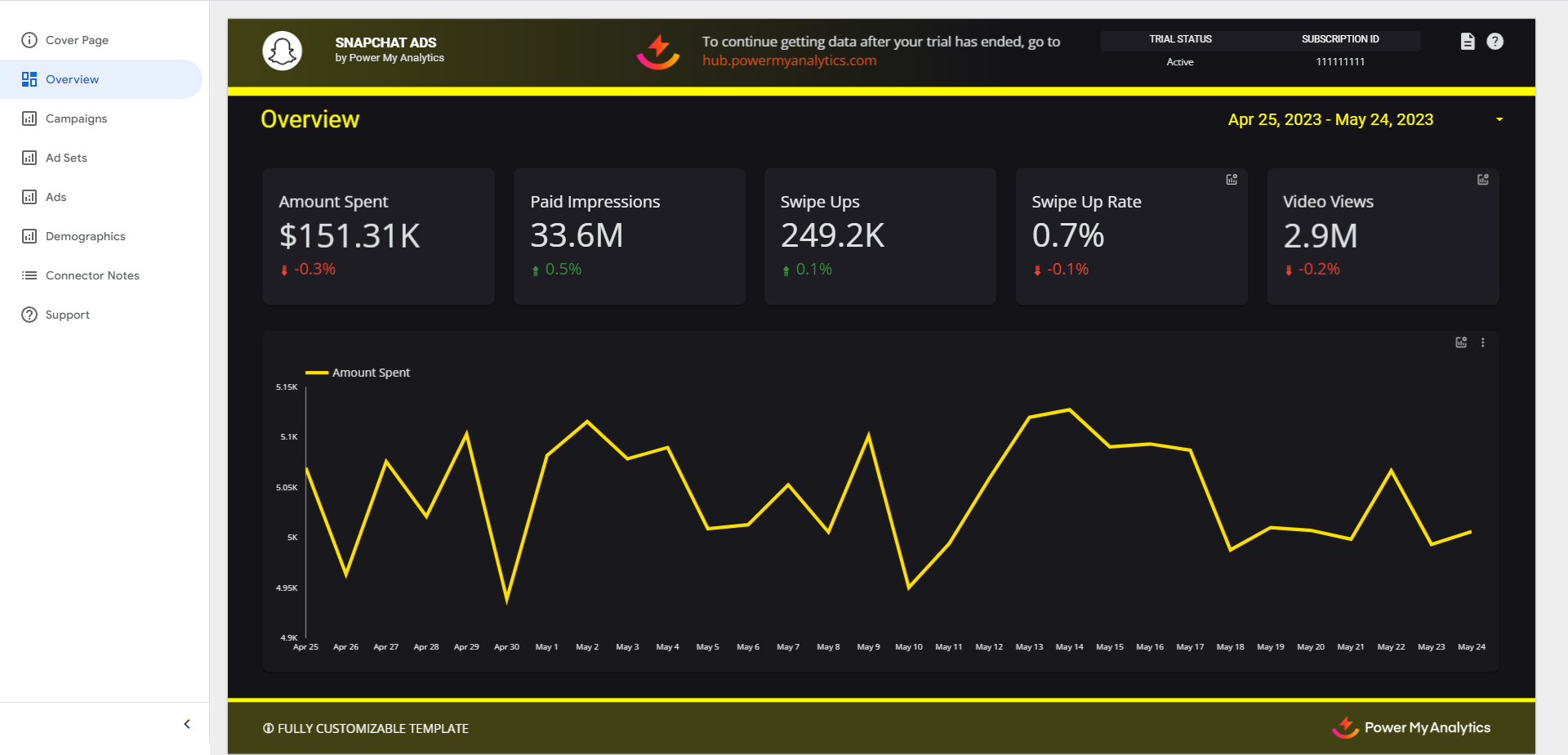
Note: This guide will help you set up and use the Snapchat Ads data source in Power My Analytics. Snapchat Ads allows you to run targeted advertising campaigns on the Snapchat platform. By connecting your Snapchat Ads account to Power My Analytics, you can easily analyze and report on your ad performance across campaigns, ad sets, and individual ads.
Prerequisites
Before connecting Snapchat Ads to Power My Analytics, ensure you have:
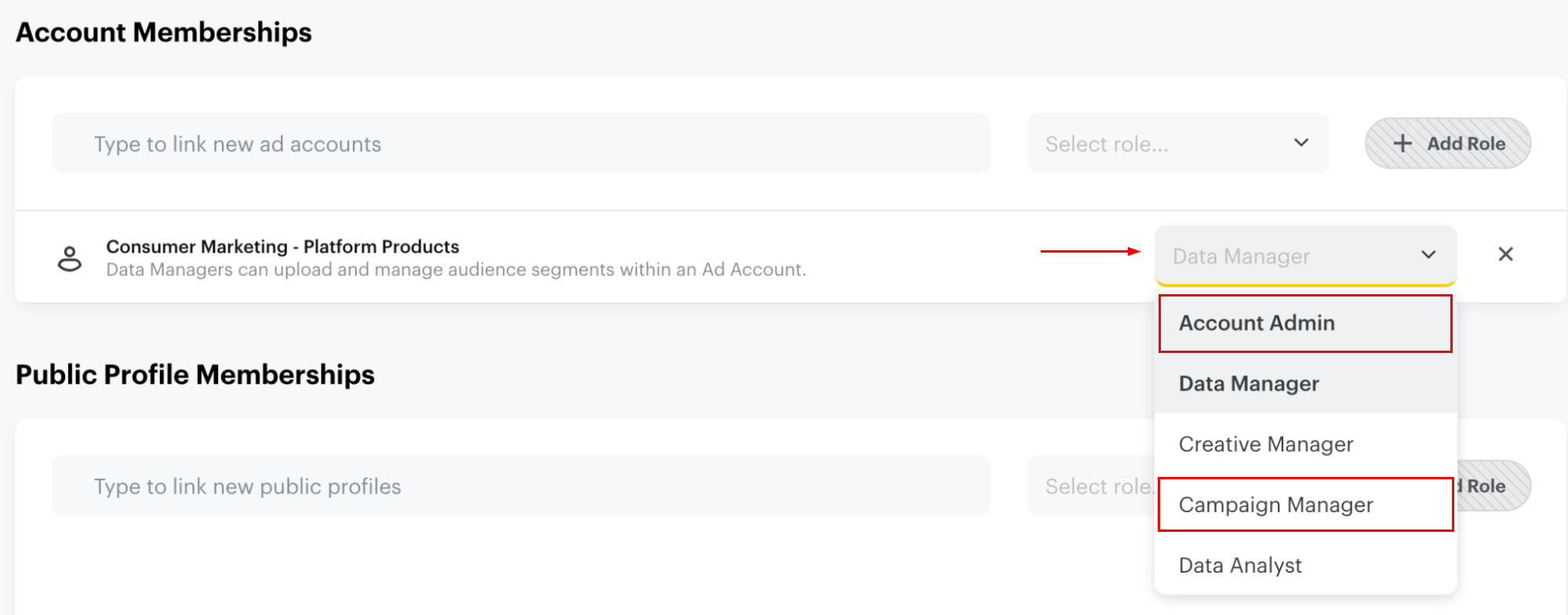
- A Snapchat account with Account Admin or Campaign Manager access
Grant Access to Snapchat Ads Account
To grant Account Admin or Campaign Manager access to a Snapchat Ads account:
Go to the Snapchat Ads Manager.
Open the menu in the upper left corner and go to Members.
Select the account, then choose an ad account role of Account Admin or Campaign Manager.
Adding Snapchat Ads as a Data Source
- Log in to your Power My Analytics account.
- Navigate to your Hub and select Sources from the menu.
- Click + New Data Source.
- Choose Snapchat Ads from the gallery of available sources.
- Sign in to your Snapchat account to authenticate.
Creating a Data Studio Report
After adding Snapchat Ads as a data source, follow these steps to create a report in Data Studio:
In your Power My Analytics hub, go to Reports > Data Studio
Select Snapchat Ads under Create Data Studio Report (this will open the official Data Studio application in a new window)
Google Data Studio Configuration:
Step 1:
- Name your data source (e.g. "Snapchat Ads - Company Name")
- Select your Power My Analytics hub from the dropdown
- Optional: Leave "Use report template for new reports" checked to use the PMA demo template
- Click Next
Step 2:
- User Account: Select your Snapchat Ads account for real data or choose "Sample Account" for sample data
- Click Next
Step 3:
- Choose “Ad Accounts”, “Attribution Windows”, “Show conversion metrics by” for reports (see Attribution Windows and Conversion Reporting Time)
- Optional: Allow “Ad Accounts”, “Attribution Windows”, “Show conversion metrics by” modification in reports
- Click Connect in the top right
Step 4:
- Click Create Report in the top right
For a quick start, use our pre-built Snapchat Ads demo template.
Attribution Windows and Conversion Reporting Time
Two settings control how your Snapchat Ads conversions are counted: Attribution Windows and Show conversion metrics by. You'll find them next to Ad Accounts in your Snapchat Ads configuration in Data Studio (Step 3 above), the Google Sheets and Microsoft Excel add-ons, and Data Builder.
These settings change conversion metrics, such as Conversion Purchases, Conversion Purchases Value, and Conversion Sign Ups, along with the cost-per and conversion rate metrics calculated from them. Delivery metrics such as Amount Spent, Paid Impressions, and Swipe Ups are not affected.
Attribution Windows
An attribution window is how long after someone swipes up on your ad (Snapchat's version of a click), or sees it without swiping, a conversion still counts toward that ad. The default is 28 Day Swipe + 1 Day View, which is also Snapchat's default.
| Option | What it counts |
|---|---|
| 28 Day Swipe + 1 Day View (Default) | Conversions within 28 days after a swipe up, or within 1 day after a view |
| 1 Day Swipe | Conversions within 1 day after a swipe up (no view-through conversions) |
| 7 Day Swipe | Conversions within 7 days after a swipe up (no view-through conversions) |
| 28 Day Swipe | Conversions within 28 days after a swipe up (no view-through conversions) |
| 1 Day Swipe + 1 Day View | Conversions within 1 day after a swipe up or a view |
| 7 Day Swipe + 1 Hour View | Conversions within 7 days after a swipe up, or within 1 hour after a view |
| 7 Day Swipe + 1 Day View | Conversions within 7 days after a swipe up, or within 1 day after a view |
| 7 Day Swipe + 7 Day View | Conversions within 7 days after a swipe up or a view |
| 28 Day Swipe + 7 Day View | Conversions within 28 days after a swipe up, or within 7 days after a view |
| 28 Day Swipe + 28 Day View | Conversions within 28 days after a swipe up or a view (see the note below the table) |
Note: Snapchat retired its 28-day view window in 2021, so 28 Day Swipe + 28 Day View may not include view-through conversions. For view-through conversions, choose a 1-day or 7-day view option.
Show conversion metrics by
- Conversion Time (Default): each conversion is counted on the date it happened.
- Exposure Time: each conversion is counted on the date someone saw the ad that led to it. Snapchat Ads Manager calls this Impression Time.
For example, if someone sees your ad on Monday and buys on Wednesday, Conversion Time counts the purchase on Wednesday, and Exposure Time counts it on Monday. With Exposure Time, conversion counts for recent dates keep rising as people convert after seeing your ads, up to the length of your attribution window.
Key Reports and Fields
Snapchat Ads data in Power My Analytics offers a wide range of metrics and dimensions. Here are some popular metrics you can use in your reports:
- Key Performance Metrics: Amount Spent, Paid Impressions, Swipe Ups, Swipe Up Rate, Video Views
- Campaign Metrics: Amount Spent, Paid Impressions, Paid eCPM, Swipe Ups, eCPSU
- Ad Set Metrics: Amount Spent, Paid Impressions, Paid eCPM, Swipe Ups, eCPSU
- Ad Metrics: Amount Spent, Paid Impressions, Paid eCPM, Swipe Ups, eCPSU
- Audience Metrics: Impressions by Gender, Age Bucket, Country
For a complete list of available Snapchat Ads fields, refer to the Schema Explorer.
Limitations and Important Considerations
Cached Data Requests with Unique Metrics and Date Dimension: When a unique metric is paired with the date dimension, this will result in a request for cached data instead of a request for live data. For more information, please see Understanding Cached and Live Data Requests.
Backfilling: An initial backfill of 24 months of data will be performed when you first connect your Snapchat Ads account as a data source.
Clicks are called Swipe Ups in Snapchat Ads reporting
CTR is called Swipe Up Rate
Troubleshooting
See our article Basic Troubleshooting for information on issues that may affect the Snapchat Ads connector.
Conversions don't match Snapchat Ads Manager
If Amount Spent and Swipe Ups match Snapchat Ads Manager but your conversions don't, the two are most likely counting conversions differently. Since August 2024, Ads Manager reports conversions by Impression Time with a 28-day swipe and 1-day view window by default, while Power My Analytics counts them by Conversion Time by default.
- In Ads Manager, check which attribution window and reporting time (Impression Time or Conversion Time) your columns use.
- In your Snapchat Ads configuration, set Attribution Windows and Show conversion metrics by to match. To match the Ads Manager default, keep 28 Day Swipe + 1 Day View and choose Exposure Time.
- Compare the same date range in both, and leave out the most recent 2 days, because Snapchat finalizes its metrics about 48 hours after each day ends.
If your numbers still don't match, submit a ticket with a screenshot from Ads Manager, a screenshot from your report, and the attribution settings you used in each.